Troubleshooting a Printer Stuck in “Offline” Status
I’ve been in IT long enough to know that a printer stuck in “Offline” status is one of those classic annoyances that never really goes away. It doesn’t matter if it’s a networked workhorse or a little USB inkjet at home, the symptom is always the same: you send a print job, the queue shows it’s waiting, and then you see that dreaded “Offline” tag. Just last week, I was fighting with an older LaserJet that decided it didn’t want to talk to my workstation after a Windows update. Frustrating, but entirely fixable with a systematic approach.My usual observation is that most people immediately jump to reinstalling drivers or restarting the entire computer. Sometimes that works, sure, but it’s often a sledgehammer approach to a problem that requires a scalpel. You end up wasting time on things that aren’t broken. What I’ve found to be much more efficient is to methodically check the layers, starting from the very physical connection and working my way up through the network, the operating system services, and finally, the driver stack. This way, you pinpoint the actual failure point and fix it, rather than just hoping a reset cures it all. It saves a lot of head-scratching in the long run.
Step-by-Step Guidance to Bring Your Printer Back Online
-
Physical Inspection
- First, just make sure the printer itself is actually on. I know it sounds obvious, but it’s often overlooked.
- Check the power cable. Is it securely plugged into the printer and the wall outlet?
- If it’s a USB printer, ensure the USB cable is firmly seated at both the printer and the computer. Try a different USB port on the computer if possible.
- For network printers, verify the Ethernet cable is plugged in securely at both the printer and the network jack or switch. Check for any link lights on the printer’s network port and the switch port.
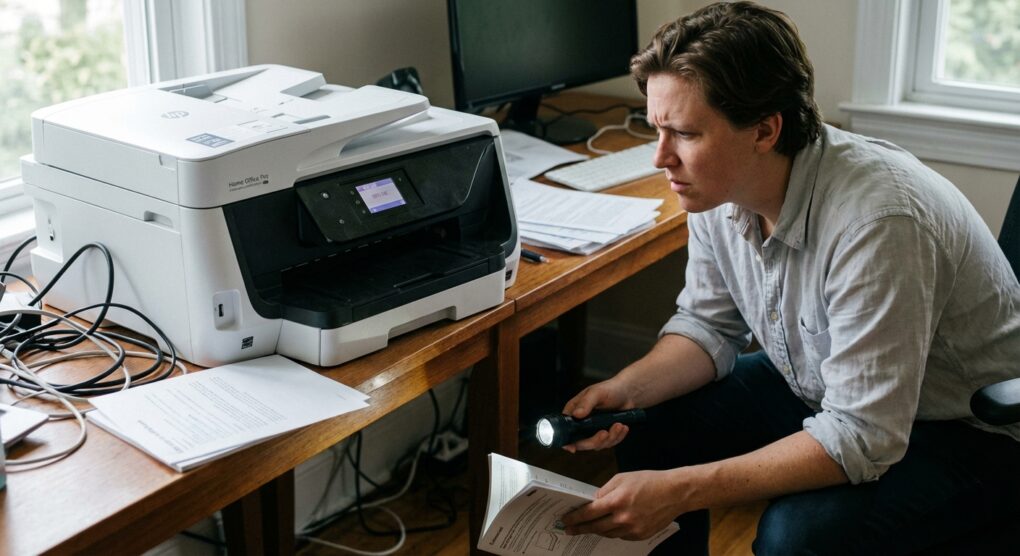
- Look at the printer’s own display panel. Is it showing “Ready,” an error message, or “Offline”? This can give you a crucial early clue.
-
Printer Status in the Operating System
- On Windows, go to Settings > Bluetooth & devices > Printers & scanners.
- Locate your printer in the list. Click on it, then select Printer properties or Manage.
- Inside the properties/management window, ensure that Use Printer Offline is *unchecked*. This is a very common culprit and often gets toggled accidentally. You usually find this option by right-clicking the printer in the list and looking at the context menu, or sometimes within the printer’s management window itself.
- Also, check the Print Queue. If there are a bunch of stuck jobs, select them all and choose Cancel All Documents. Sometimes a single corrupted job can jam up the whole process.
-
Restart the Print Spooler Service
- The Print Spooler service is absolutely critical for printing in Windows. If it’s stopped or hung, nothing will print.
- Press Windows Key + R, type services.msc, and hit Enter.
- Scroll down and find the service named Print Spooler.
- Right-click on it and choose Restart. If it’s not running, select Start. Make sure its “Startup type” is set to Automatic.
-
Network Connectivity Check (for Network Printers Only)
- If it’s a network printer, we need to ensure your computer can actually talk to it over the network.
- First, you’ll need the printer’s IP address. You can often find this on the printer’s display panel, by printing a configuration page from the printer itself, or by checking your router’s client list.
- Once you have the IP, open Command Prompt (type cmd in the Windows search bar).
- Type ping <printer_IP_address> (e.g., ping 192.168.1.150) and press Enter. You should see replies. If you get “Request timed out” or “Destination host unreachable,” you have a network issue.
- Try accessing the printer’s web interface (if it has one) by typing its IP address into a web browser (e.g., http://192.168.1.150). If you can’t reach it, the network connection is definitely the problem.
- Check the Ports tab in the printer’s properties (from Step 2). For a network printer, there should be a Standard TCP/IP Port selected, with the correct IP address configured.
-
Driver and Port Reconfiguration
- Sometimes the problem is deeper, perhaps a corrupted driver or an incorrect port configuration.
- Go back to Settings > Bluetooth & devices > Printers & scanners.
- Remove the problematic printer. Select it, then click Remove or Delete device.
- For good measure, open Device Manager (search for it in Windows) and check under Print queues or Software devices for any remnants of the old driver and uninstall them if found.
- Now, restart your computer. This clears out any lingering driver issues.
- After restarting, reinstall the printer. For network printers, Windows usually finds them when you select Add a device. For USB, just plug it in. I always recommend downloading the latest official drivers from the printer manufacturer’s website specifically for your OS version (32-bit vs. 64-bit matters!). Install those, rather than relying solely on Windows Update.
Things people often get wrong
One of the most common pitfalls I’ve seen people (including myself, early on) fall into, particularly with network printers, is assuming the printer’s IP address never changes. I once spent a good hour troubleshooting a network LaserJet, restarting services, reinstalling drivers, everything, only to find the new router the client had installed over the weekend had assigned a new IP address via DHCP. My system was still trying to talk to the old, now defunct IP. I was pinging into the void! Always verify the current IP address, especially if there have been any network changes. Another really common one is simply missing the “Use Printer Offline” toggle in the printer’s context menu. It’s such a simple setting, but it’s often overlooked because it’s exactly what the problem states, so people assume it’s a symptom, not a cause they can switch off. Also, make sure to check basic things like if there’s paper in the tray, if all the covers are properly closed, or if the toner/ink cartridge is seated correctly. Printers can be surprisingly finicky about these physical states, and they’ll happily report “offline” or an obscure error code when they just need a little nudge.Getting a printer unstuck from “Offline” is almost always a systematic process of elimination, from verifying the physical connection all the way up to ensuring the software services are running correctly.