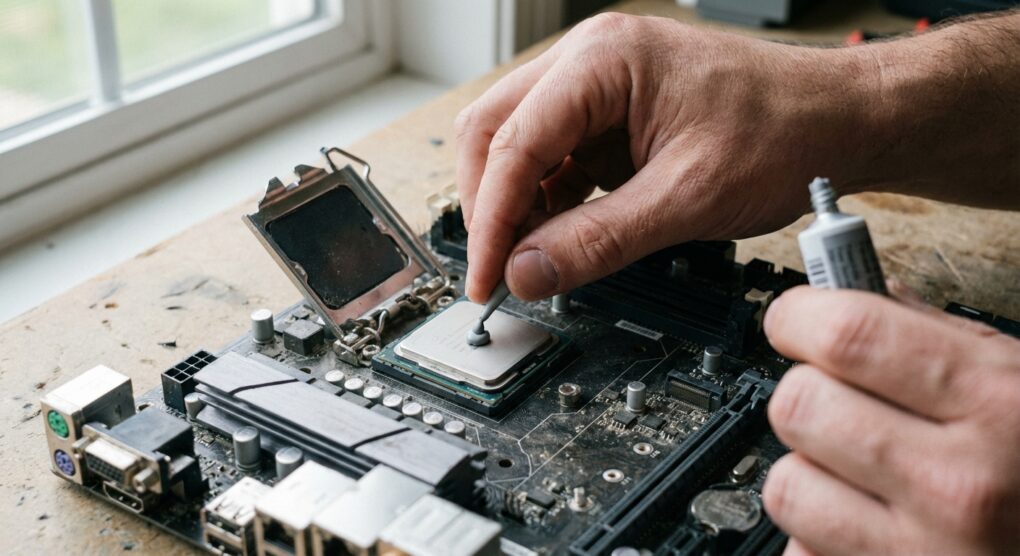
The other week, I finally got around to replacing the stock cooler on my son’s gaming rig with something more substantial after his complaints about noise and occasional thermal throttling during long Fortnite sessions. You know the drill—a solid cooler, but it meant reapplying thermal paste. A task that seems simple, but if you’ve been doing this long enough, you know it’s one of those small details that can cause a disproportionate amount of headache if not done right.
Why the ‘Pea Method’ isn’t always enough
I’ve seen countless guides recommending the “pea method” or the “X method” for applying thermal paste. And sure, for many basic applications, they’ll get you by. But over the years, I’ve found them inconsistent. Different pastes have different viscosities, and CPU dies aren’t all the same size. Relying on mounting pressure to spread the paste perfectly can lead to air bubbles, uneven coverage, or areas with insufficient paste, especially on larger Intel or AMD Ryzen dies. My approach, which I find far more reliable, involves manually spreading a thin, even layer across the entire Integrated Heat Spreader (IHS). It’s a bit more hands-on, but it ensures full contact and eliminates guesswork.
How to get it right
This is my tried-and-true method, the one I used just recently and have used for years on countless builds and maintenance jobs.
1. Preparation is Key
- First things first, power down your machine and unplug it completely from the wall. You don’t want any surprises.
- Move your PC to a clean, stable workspace. Grab your tools:
- 90% or higher isopropyl alcohol (IPA). Lower percentages leave too much water residue.
- Lint-free wipes or coffee filters. Paper towels leave fibers. Old, clean cotton cloths can work too, but I prefer the dedicated stuff or coffee filters.
- Your new tube of thermal paste. Don’t cheap out here.
- A plastic spatula or old credit card to spread the paste. Most good pastes come with a small one.
- Maybe a small flashlight to inspect the surfaces.
2. Cleaning Off the Old Stuff (if applicable)
If you’re replacing an old cooler or refreshing old paste, this step is critical.
- Carefully unmount your CPU cooler. Be gentle. Older paste can sometimes act like glue, so a slight twisting motion (less than a quarter turn) before lifting straight up can help break the seal without damaging the CPU or socket.
- Dip a lint-free wipe in the isopropyl alcohol. Gently but firmly clean the surface of the CPU’s IHS. Keep wiping, using fresh parts of the wipe, until all traces of old thermal paste are gone and the surface is shiny. You should be able to see your reflection clearly.
- Repeat this process for the base plate of your CPU cooler. It needs to be just as clean.
- I remember the first time I did this, maybe fifteen years ago, on an old AMD Athlon XP. I just gave the CPU a cursory wipe with a paper towel. Figured “mostly clean” was “clean enough.” Ended up with higher idle temps and had to redo the whole thing a week later. Learned my lesson: be meticulous here. Any residue acts as an insulator.
3. Applying the New Thermal Paste
- Dispense a small amount of thermal paste onto the center of the CPU’s IHS. I’m talking a blob about the size of a small pea for most mainstream CPUs (like a Ryzen 5 or Intel i7). For larger chips or a very viscous paste, you might need a bit more.
- Take your plastic spatula or old credit card. Hold it at a slight angle and begin to spread the paste evenly across the entire surface of the IHS. You want a thin, opaque, consistent layer. It should look like a very thin coat of paint—you should barely be able to see the silver of the IHS underneath, but you shouldn’t be piling it on.
- The goal is 100% coverage with no air gaps. Don’t worry about spreading it right to the absolute edges; the cooler’s pressure will distribute it just a fraction further.
4. Reinstalling the Cooler
- This is where you need to be steady. Carefully align your CPU cooler over the CPU. Lower it straight down onto the CPU without any twisting, sliding, or wiggling. Any lateral movement will smear the paste and create air pockets.
- Follow your cooler manufacturer’s instructions for tightening the screws. Most modern coolers use a spring-loaded screw system. Tighten them in a cross pattern (diagonal opposite screws) and do it in stages. Turn each screw a few times until it starts to feel snug, then move to the next diagonal one. Repeat this until all screws are fully tightened. This ensures even pressure. Don’t overtighten; you risk damaging the motherboard or CPU socket.
- Don’t forget to reconnect the CPU fan header to your motherboard! This is a classic oversight, and I’ve seen it countless times on calls.
5. Testing
Boot up your system. Once in Windows (or your OS of choice), open a monitoring tool like HWMonitor, HWiNFO64, or Core Temp. Check your idle temperatures. Then, run a CPU stress test (Prime95 or AIDA64 for a few minutes) and monitor your temperatures under load. You’re looking for stable, expected temperatures for your cooler and CPU combo. If something seems off, it’s back to square one.
Things people often get wrong
- Too much paste: A common beginner mistake. It doesn’t improve cooling, just makes a mess and wastes paste. Excess paste can squeeze out and get onto motherboard components, potentially causing issues (though most modern pastes are non-conductive, it’s still best to avoid).
- Too little paste: Leaves gaps, leading to hot spots and inefficient cooling. This is what my spreading method aims to prevent.
- Not cleaning thoroughly: Old, dried thermal paste acts as an insulator. Leaving it on means your new paste isn’t making direct contact, defeating the purpose.
- Twisting the cooler during installation: This is a big one. It smears the paste, creates air pockets, and undermines your careful application. Straight down, always.
- Forgetting the fan header: Your CPU will hit thermal limits in seconds if the cooler isn’t spinning. I’ve been called out to systems where this was the sole problem.
- Using the wrong cleaner: Don’t use water, window cleaner, or low-percentage rubbing alcohol. They can leave residue or even corrode components. 90%+ IPA is your friend.
Getting the thermal paste right is a small detail that makes a big difference in the longevity and performance of your system.