You spent over a grand on a “Smart 4K HDR” display, and the first time you watch a movie, it looks like a cheap soap opera shot on a handheld camcorder. That is the manufacturer’s fault. They ship the TV in “Store Mode” with motion smoothing jacked up to 100% and the colors so oversaturated they burn your retina. Their goal is to look brightest on the showroom floor; their goal is not, in any way, to deliver an accurate image. On top of that, the TV’s operating system is usually a slow, bloated piece of junk with about 4GB of usable storage. I’m going to walk you through exactly how I configure a new TV to look like a proper display and how to stop the OS from slowing to a crawl after two months.
Why the Factory Defaults Are Garbage
Your TV is lying to you in three ways. First, the Picture Preset is usually set to “Vivid” or “Dynamic.” This pushes the color gamut outside of any acceptable standard and crushes the blacks, losing all detail in dark scenes. Second, Motion Smoothing (called “TruMotion” on LG or “Auto Motion Plus” on Samsung) uses frame interpolation—the TV guesses what frames should go between the real frames—making movies look ridiculously fast and unnatural (the “soap opera effect”). Finally, the TV’s operating system itself is cheap. It’s a low-powered ARM chip with minimal RAM, and every app you install and run loads a persistent cache that eventually chokes the system to death. You have to purge the vendor’s settings and then manually optimize the OS.
The How-To: The Configuration Overhaul
I perform this triage on every TV I install. You are aiming for accuracy and silence, not retina burn.
1. Picture Quality: The De-Sopification
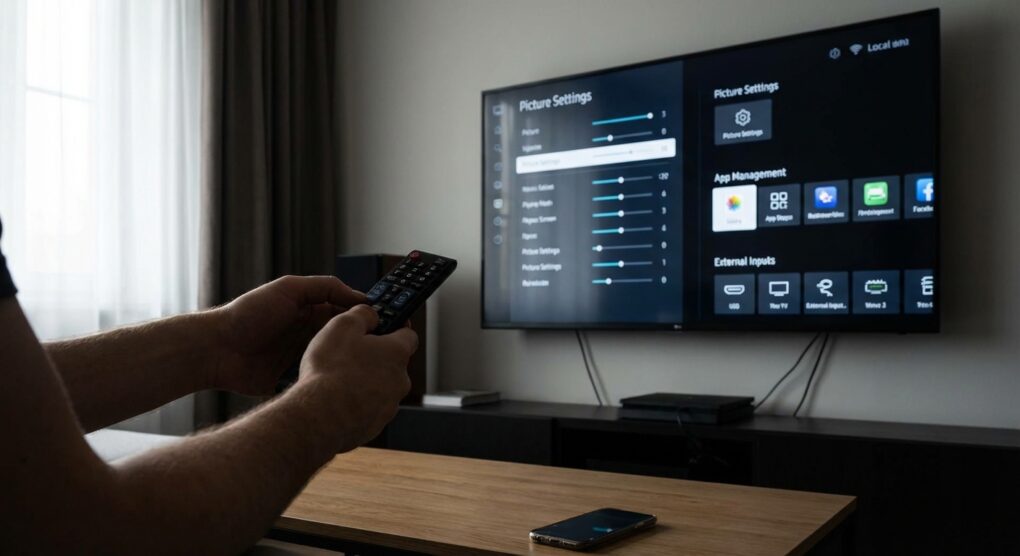
Do this immediately after plugging the TV in. You need to hunt down three specific settings that manufacturers bury deep in the menus.
- Change the Picture Mode: Go to Settings > Picture Mode. Change it from “Vivid” or “Dynamic” to Filmmaker Mode (if available) or Movie/Cinema Mode. This defaults the temperature and gamma to something actually accurate.
- Kill the Motion Smoothing: This is non-negotiable. Go to Settings > Picture > Expert Settings > Clarity or Motion Options. Set “Frame Interpolation,” “TruMotion,” or “Auto Motion Plus” to Off or Custom (0/0). I once left this on for a sporting event and thought my TV was broken because the frame interpolation made the ball look choppy and fake.
- Disable Enhancement Filters: Turn off all the “smart” processing features. Go back to Expert Settings and find Noise Reduction, MPEG Noise Filter, and Edge Enhancement. Set all of these to Off or Low. These filters soften the image and add lag, which is useless for 4K content.
2. Application Management and Storage Fixes
The OS will eventually fill its internal storage with cached thumbnails and partially downloaded update files. When this happens, the remote input lags, and apps crash.
- Clear the Cache: On Android/Google TV, go to Settings > Apps > See all apps. Select the apps you use most (Netflix, YouTube, Hulu). For each one, select Clear cache. Do not clear “Data” unless you want to re-log in to everything.
- Disable Unused Bloatware: If your TV came with a pre-installed app like “Vendor Fitness Tracker” or “Channel Plus,” and you don’t use it, select Disable or Force Stop it. You usually can’t truly uninstall it, but disabling stops it from running telemetry in the background.
- Expand Storage with USB: If your TV OS is Android/Google TV, you can use a cheap, small USB 3.0 flash drive (16GB or 32GB) to expand the internal storage. Plug it in and go to Settings > Storage > USB Drive and select Format as device storage. This gives the OS breathing room for caching and new apps.
3. Connectivity and Audio Cleanup (The ARC/eARC Trap)
The single most frequent call I get is “My soundbar stopped working.” This is almost always due to the HDMI handshake failing, and it is infuriating.
- Check the Port: Ensure your soundbar or receiver is plugged into the HDMI ARC or eARC port, not just any random port.
- Kill Unnecessary CEC: HDMI-CEC (Consumer Electronics Control) is the protocol that allows the TV remote to control the soundbar and vice versa. It’s also the first thing that breaks. Go to Settings > General > External Device Manager > Anynet+ (HDMI-CEC) and turn it off for every device except the soundbar. If you have an Amazon Fire Stick plugged in, disable CEC on that specific HDMI input to prevent the stick from trying to take over the entire system.
- Prioritize 5GHz Wi-Fi: Go to Settings > Network > Wi-Fi. If your router has both 2.4GHz and 5GHz bands, make sure your TV is connected to the 5GHz band. Streaming 4K HDR content requires bandwidth, and the 2.4GHz band is often congested and too slow, leading to buffering and lower quality playback.
Usual problems
The E-ARC Handshake Failure
You plug your fancy new eARC soundbar into the eARC port, and it randomly stops sending audio. This happens because the HDMI-CEC handshake timed out. The dirty fix is often unplugging the TV from the wall for 30 seconds (a hard power cycle), not just turning it off with the remote. This forces the CEC components to fully reset and re-negotiate the audio channel when you plug it back in. Doing this via the remote doesn’t work because the TV rarely truly powers down.
Input Lag in Game Mode
If you’re gaming and the picture looks great but your input commands feel delayed, you are not in Game Mode correctly. You need to enable Game Mode, but you also need to ensure that the setting HDMI Input Label is set to “PC” or “Gaming Console” for that specific input. This tells the TV to disable all post-processing effects and bypass the picture engine’s buffering to minimize latency. If you leave it set to “Blu-ray Player,” the TV assumes you can tolerate an extra 100ms of lag.
Auto-Update Chaos
Your smart TV will download updates and install them at the worst possible time. I set mine to disable automatic updates. Go to Settings > Support > Software Update and set it to Manual. I check the model’s forums once a month. If the new firmware is stable, I install it then. If the forum is filled with users complaining that the update broke HDMI-ARC (which happens constantly), I skip it.
The only way to win with a smart TV is to reject 90% of the manufacturer’s automated garbage and manually configure it for accuracy and performance.