I was knee-deep in a stack of old digital photos recently, trying to restore and touch up some cherished family memories. I’d spend ages adjusting the white balance, tweaking contrast, and perfecting the hues in my photo editor, feeling pretty confident in my work. Then I’d export a proof, throw it on my phone, or open it up on my wife’s laptop, and boom—the colors were just… off. Not drastically, but enough to make the skin tones look a bit sickly or the blues feel too punchy. That kind of inconsistency is infuriating when you’re trying to be precise, and it was the final nudge I needed to properly calibrate my main editing monitor.
Now, I know a lot of folks just tinker with their monitor’s built-in OSD controls or rely on the basic calibration tools Windows or macOS provide. And for general web browsing or document work, those are usually fine. But for serious photo editing, where color fidelity is paramount, they simply aren’t adequate. My issue, and a common one I see, is that our eyes are incredibly adaptive. If your screen is showing colors inaccurately, your brain eventually adjusts, making you unconsciously overcompensate in your edits. A proper hardware calibrator, coupled with its dedicated software, generates an accurate color profile (an ICC profile) specific to your display. This profile then tells your operating system and, crucially, your color-managed applications like Photoshop, Lightroom, or GIMP exactly how to render colors on your unique screen. It moves you from subjective “looks good to me” to an objective, repeatable standard.
How I Calibrate My Monitor
When I say “properly,” I mean using a hardware colorimeter. There’s no real substitute if you’re serious about accurate color. Here’s the drill I follow, usually on a Windows machine, but the principles are pretty universal.
Before You Start
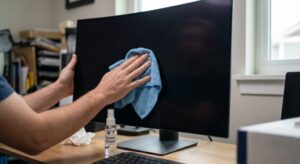
- Clean your screen: Dust, smudges, or fingerprints will throw off your readings. Use a proper screen cleaner and microfiber cloth.
- Warm it up: Turn on your monitor at least 30 minutes before you start. Displays need time to reach a stable operating temperature and brightness. I usually just let it run while I grab a coffee or deal with emails.
- Control your environment: Minimize ambient light. Turn off overhead lights, pull curtains, and avoid direct sunlight or bright lamps reflecting off the screen. You want consistent, subdued lighting.
- Reset monitor settings: Go into your monitor’s OSD (On-Screen Display) menu. Reset it to factory defaults. Turn off any “dynamic contrast,” “game mode,” or other picture enhancements. Set the color temperature to “User” or “Custom” if available, but leave the individual RGB sliders at their neutral mid-points (e.g., 50/100, or 255/255 for max). You want the monitor itself to be as neutral as possible for the calibrator to work from.
The Calibration Process (with a Hardware Colorimeter)
- Install the software: Your colorimeter (like X-Rite i1Display Pro or Datacolor Spyder) comes with its own software. Install this first.
- Connect the colorimeter: Plug your device into an available USB port.
- Launch the software and set targets:
This is where you define your desired standard. For photo editing, I typically use these:
- White Point: 6500K (D65). This is the standard for sRGB and generally matches daylight. Some prefer 5000K (D50) for print matching, but for screen-to-screen consistency, 6500K is my go-to.
- Gamma: 2.2. This is the standard for Windows and sRGB.
- Luminance (Brightness): This depends on your viewing environment. For my setup, working in a moderately dim room, I aim for between 90-120 cd/m² (candelas per square meter). If your screen is too bright, it fatigues your eyes and can lead to underexposed edits. I usually land around 100 cd/m².
You’ll also specify your monitor type (e.g., LCD, LED, Wide Gamut) within the software.
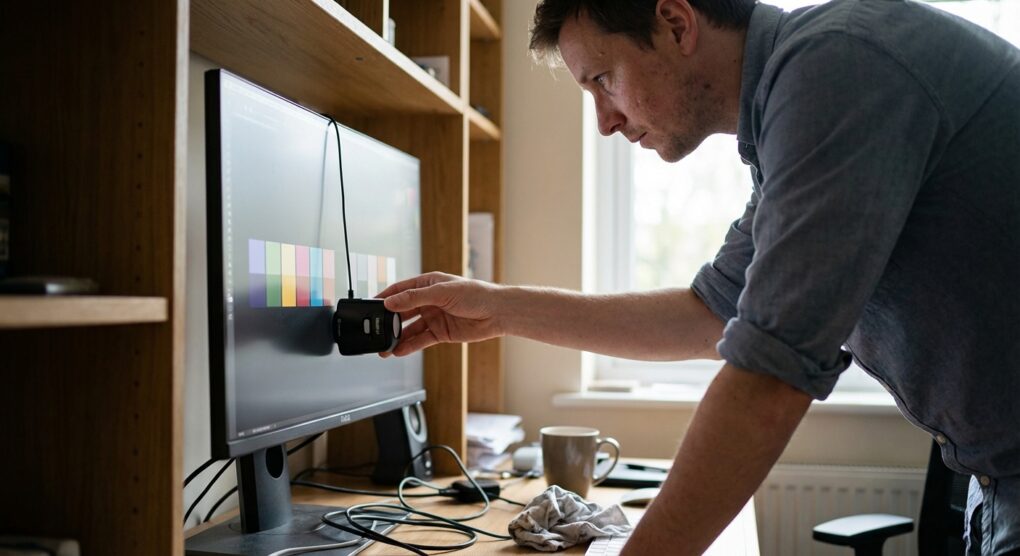
- Position the device: The software will instruct you to place the colorimeter squarely on the screen, usually centered. Ensure it’s flush against the display.
- Run the calibration: Click Start or Calibrate. The software will display a series of color patches while the device takes readings. It might prompt you to adjust your monitor’s OSD brightness or contrast until it hits the target values. Follow these instructions precisely.
- Profile generation: Once complete, the software generates a unique ICC profile for your monitor. Give it a descriptive name (e.g., “MyMonitor_D65_2.2_100cd_2024-03-15”) and save it. The software typically installs it as the default profile for that display in your operating system.
Things people often get wrong
I’ve certainly bumped into my share of these, and seen clients struggle with them too.
- Skipping hardware: Trying to eyeball it or using only software utilities. Your eyes are wonderful, but they aren’t precise measurement devices.
- Forgetting monitor resets: Not resetting your monitor to factory defaults and disabling all its “enhancements” before you start.
- Ignoring ambient light: Calibrating in a brightly lit room with varying light sources leads to an inaccurate profile.
- Not waiting for warm-up: A cold monitor will give different readings than one that’s been on for an hour.
- My own blunder: The very first time I tried a proper calibration, I completely forgot about Windows’ built-in Night Light feature. It was subtly active, giving my screen a warm, orange tint. Of course, the calibrator dutifully measured *that* tint, and my resulting profile was wildly off. It took a frustrating hour of re-calibrating and scratching my head before I remembered to switch it off under Settings > System > Display > Night light settings. Always double-check system-level display enhancements!
- GPU driver overrides: Sometimes, your graphics card control panel (like NVIDIA Control Panel or AMD Adrenalin) can have its own color adjustments that fight with the OS-level ICC profile. Check these settings and ensure they are neutral or set to “Application Controlled.”
- Infrequent re-calibration: Monitors drift over time. I aim to re-calibrate every 2-4 weeks, especially for critical color work.
A properly calibrated monitor ensures that the colors you see on screen are the colors you’ll get in your final output, leading to more accurate and predictable results.