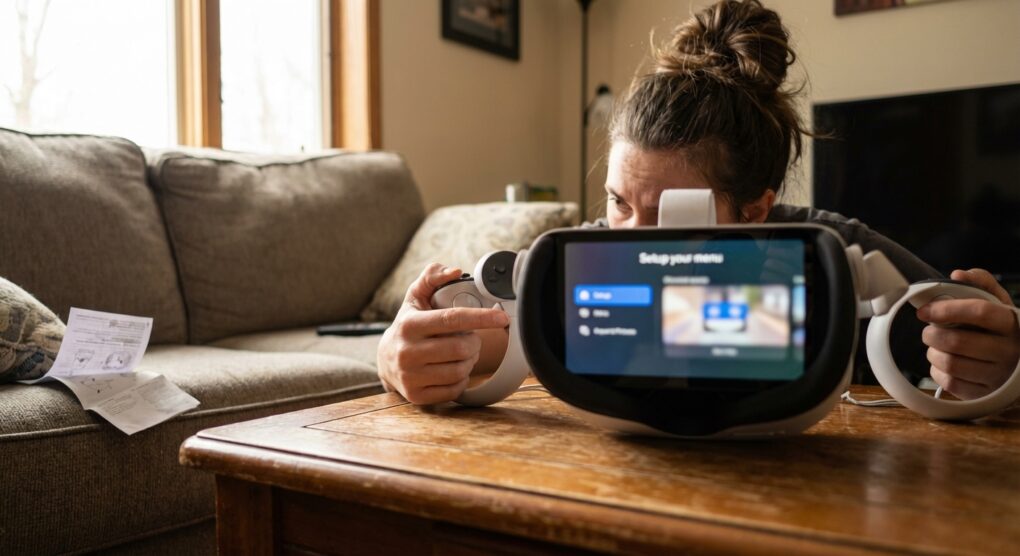
The moment I get my hands on any new piece of tech these days, especially something as deeply personal as a VR headset, my first thought isn’t about what game to play. It’s about what data it’s going to siphon off me and how to shut it down. When I unboxed my latest Meta Quest, the exact same thought hit me. I know these devices are powerful and can be great fun, but they’re also data vacuums by default, and I wanted to make sure my family’s activities, and mine, stayed private.
The typical approach, for most folks, is to just accept the defaults and maybe poke around if something feels off. But that’s a reactive stance, and with these platforms, it means you’ve probably already given away more than you intended. My approach is always proactive: assume maximum data collection is enabled and systematically disable anything that doesn’t explicitly serve a critical function I want. It’s a lot easier to start from a locked-down state and open things up as needed than the other way around. Most of the critical privacy settings aren’t even clearly signposted as such; they’re tucked away under various menus, sometimes even requiring the mobile app or a web browser.
Immediate Privacy Lock-Down Steps
-
Start with your Meta Account
Before you even power on the headset, if you haven’t already, make sure your Meta account isn’t directly tied to your personal Facebook profile if you want maximum separation. I always recommend creating a Meta account that exists independently. If you’ve already linked, you’ll need to go to the Meta Accounts Center on a web browser or through the Meta Quest mobile app, under Accounts, to manage which accounts are connected. Disconnect Facebook and Instagram if they’re there and you don’t want them sharing data.
-
Initial Headset Setup & Profile Creation
During the setup process, be highly selective. When prompted to create your profile:
- Set your profile to Private. Look for options like “Who can see your activity” or “Profile visibility.”
- Decline requests to “find friends” or “connect with people you know.”
- Don’t allow the headset to sync contacts from your phone.
- Carefully review permissions requested by the initial Meta software.
-
Dive into Headset Settings
Once you’re through the initial setup and in the home environment:
Press the Meta button on your right controller to open the universal menu. Then, select the gear icon in the bottom-left corner to open Settings.
-
Under Privacy & Safety:
- Select Profile & Connections:
- Set Active Status to Off. I don’t need anyone knowing when I’m online.
- Set Who can follow you to Friends or Private.
- Review Blocked Users. Better to be proactive here than reactive.
- Select Individual Privacy Settings:
- Ensure Private Profile is toggled On. This is foundational.
- Set Who can see your online activity to Only Me.
- Set Who can see your followers/following to Only Me.
- Set Who can send you messages and Who can send you friend requests to Friends or No One, depending on your use case.
- Select Device Permissions:
- Go into Microphone and review which apps have access. Turn off anything unnecessary. New apps will ask, deny them by default.
- Do the same for Camera (if applicable to your headset model, e.g., Quest Pro passthrough) and Location Services. My rule is: if the core function of the app doesn’t demand it, it doesn’t get it.
- Select Profile & Connections:
-
Under Security (still in general Settings):
- Set up an Unlock Pattern. This provides a basic layer of physical security.
-
Under System:
Scroll down to Tracking Preferences:
- Turn off Device Usage Data. This is Meta’s telemetry on how you use the device.
- Turn off Connected Experiences. This one can link your VR activity to other Meta services.
- Turn off System Diagnostic Data. While useful for debugging, I prefer to keep my diagnostic data local unless I’m actively troubleshooting.
- Turn off Eye Tracking and Face Tracking (if available on your model) for general use. Enable only for specific apps that genuinely benefit and you trust.
-
-
Meta Quest Mobile App / Web Portal
Some settings aren’t on the headset directly. Open the Meta Quest app on your phone:
- Go to Menu -> Privacy Center or Privacy Settings.
- Review Activity Privacy: This often mirrors headset settings but can have additional granularity.
- Check Data Privacy: Look for options related to “Improve Meta Quest,” “Store connected app data,” and “Facebook & Instagram connection.” Disable everything you’re uncomfortable with.
- Review Linked Services in your Meta Account Center. This is where applications and services you’ve logged into with your Meta account can be managed. Unlink anything you no longer use or trust.
- If you use Horizon Worlds, there are specific privacy settings *within* that application for voice mode, personal boundaries, and blocking. Access these from within Horizon Worlds itself.
Things people often get wrong
One common oversight I’ve seen, and frankly, made myself the first time I was going through a Quest setup, is assuming that setting something on the headset covers the entire Meta ecosystem. For instance, I turned off “device usage data” on the headset, thinking that was it for all telemetry. What I failed to realize was that there are often *account-level* data collection settings managed solely through the Meta Account Center on the web or the mobile app, separate from the device-specific ones. These might govern how your usage data is aggregated across all Meta products, not just that specific headset. It’s a subtle but significant distinction between device settings and your overarching Meta profile settings, and it requires checking both places thoroughly. You need to verify every angle.
Also, don’t just grant app permissions because an app asks. Think critically: does a puzzle game *really* need microphone access? Does a fitness app *truly* need your precise location rather than just rough geographic data? Most often, the answer is no, and you should deny it. If the app breaks, you know why and can reconsider, but usually, it won’t.
Remember that software updates can sometimes introduce new “features” that re-enable data collection, or add new categories of data. It’s not just a one-and-done task; I make it a habit to check these settings after any significant firmware update.
Keeping on top of your privacy settings on a Meta Quest is an ongoing, multi-platform task that pays dividends in peace of mind.