When “Gone” Isn’t Quite Gone: Recovering Deleted Files Beyond the Recycle Bin
I’ve been there more times than I care to admit, both for myself and for frantic clients. That moment when you’ve accidentally hit Shift+Delete on an important file, or, worse, you’ve emptied the Recycle Bin, only to realize minutes, hours, or even days later that a critical document, a cherished photo, or a project file was in that digital abyss. It’s a sinking feeling, knowing it’s not in the Recycle Bin anymore, and the usual “restore” button is out of the picture. But “permanently deleted” from the Recycle Bin isn’t always truly “gone” from the drive—at least, not immediately.
Why the Usual Approach Falls Short (and Ours Works)
When you delete a file, even permanently from the Recycle Bin, the operating system doesn’t actually zero out the data on your disk right away. What it does is mark the space that file occupied as “available” for new data. Think of it like a library book: when it’s returned, the librarian doesn’t immediately shred the book. They just mark its shelf space as open for the next new arrival. The book is still physically there until another one takes its place. Our challenge, then, is to find that “book” before a new one gets shelved on top of it. This is why standard file explorers and the Recycle Bin itself are useless here; they only see what the OS *thinks* is currently in use. We need tools that dig deeper, looking at the raw sectors of the drive.
How I Approach File Recovery
The Absolute First Rule: Stop Using the Drive Immediately
This is, without exaggeration, the single most critical piece of advice I can give you. If the files were on your system drive (C: drive, for most of us), the moment you realize the mistake, you need to stop using that computer. Every email you open, every application you launch, every web page you browse, writes data to the disk. Each write increases the chance that your deleted files will be overwritten, making recovery impossible.
Years ago, when I was first cutting my teeth on this kind of recovery, I made a classic rookie mistake. I was trying to recover a few files I’d accidentally nuked from my own machine. In my haste, I downloaded and installed the data recovery software *onto the very same drive* I was trying to recover from. It felt like a smart shortcut at the time, but in hindsight, I was effectively playing Russian roulette with my own data, potentially overwriting the very sectors I was trying to retrieve. Don’t be me. Learn from my impatience.
- If it’s your primary OS drive, power down the machine.
- If it’s an external drive or a secondary internal drive, safely eject it or disconnect it.
Step-by-Step Recovery
- Prepare a Recovery Environment:
Since you can’t install software onto the drive you’re trying to recover from, you have two primary options:
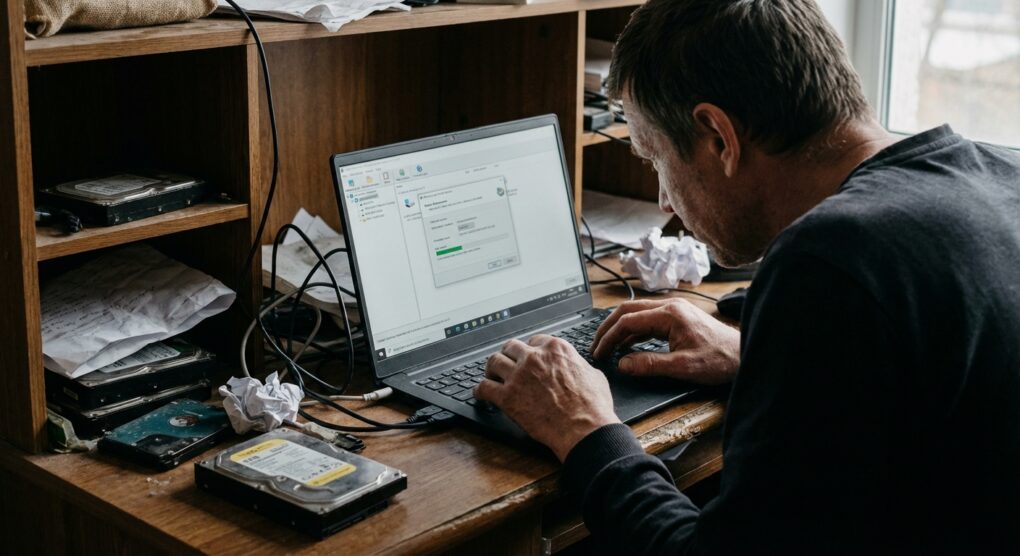
- Option A (Best): Remove the Drive and Connect to Another PC. This is my preferred method. Pull the drive from the affected machine and connect it as a secondary drive to another working computer. This ensures absolutely no writes happen to the target drive.
- Option B: Boot from a Live USB. Create a bootable USB drive with a minimal operating system (like a Linux Live distribution or a Windows PE environment) that includes data recovery tools. Boot your problematic machine from this USB. This runs the OS and tools entirely from RAM or the USB, keeping the target drive untouched.
- Acquire and Install Data Recovery Software:
There are many tools out there. What you need is something that performs a “deep scan” or “sector-level scan,” not just a quick file system check. These tools look for file signatures directly on the disk, ignoring the file system’s “deleted” markers. Install this software on your *secondary PC* (from Option A) or ensure it’s part of your *Live USB environment* (from Option B).
- Look for features like:
- Deep Scan / Raw Scan: Essential for finding files without their directory entries.
- File Signature Recognition: Identifies files by their internal structure (e.g., JPEG headers, DOCX headers) even if the file name is lost.
- Preview Functionality: Allows you to see the contents of recoverable files before committing.
- Look for features like:
- Initiate the Scan:
Launch the recovery software and select the drive you want to scan. Choose the deepest, most thorough scan option available. Be prepared for this to take a significant amount of time – hours, or even a full day, depending on the size and speed of the drive.
- Preview and Select Files:
Once the scan completes, the software will present a list of recoverable files. Don’t expect perfect folder structures or original filenames for everything, especially if the file system entries have been overwritten. You’ll often see files listed by type (e.g., .jpg, .docx) or as generic “File0001.ext.” Use the preview function to verify that you’ve found the correct files.
- Recover to a *Different* Drive:
This is another non-negotiable step. When you select the files for recovery, you *must* choose a different physical drive as the destination. Never save recovered files back to the drive you’re recovering them from. Doing so would write new data onto the very drive you’re trying to retrieve from, potentially overwriting other recoverable files.
Things people often get wrong
- The SSD vs. HDD Difference: This is a big one. For traditional Hard Disk Drives (HDDs), the “deleted but still there” principle generally holds true. However, for Solid State Drives (SSDs), things are much tougher. Most modern SSDs utilize a feature called TRIM. TRIM actively and automatically zeroes out blocks of data shortly after they are marked for deletion. This is done to maintain SSD performance, but it makes data recovery from a TRIM-enabled SSD extremely difficult, often impossible, once the operating system has had a chance to execute the command. If your deleted files were on an SSD, your chances of recovery drop significantly, especially if any time has passed.
- Continued Use of the System: As I mentioned, any activity on the drive can overwrite the data. Even seemingly minor background processes can write temporary files. This is why powering down or disconnecting is so important.
- Expecting 100% Recovery: Even with the best tools and precautions, not every file will be perfectly recoverable. Some might be partially overwritten, resulting in corrupt or unreadable files. Manage your expectations; success is never guaranteed, but it’s always worth a try.
- Ignoring Encryption: If the drive was encrypted (e.g., with BitLocker, VeraCrypt), you’ll need the decryption key or password to access the raw data, even with recovery software. Without it, the recovered data will be an unreadable scramble.
- Thinking Network Share Deletions are Local: If you deleted files from a network drive or a cloud sync folder, those files didn’t go to your *local* Recycle Bin. They went to the server’s equivalent (if it has one) or were simply marked for deletion on the remote storage. Your local recovery efforts won’t help here.
Patience, a methodical approach, and strict adherence to the “don’t write to the source” rule are your best allies in retrieving those seemingly lost files.