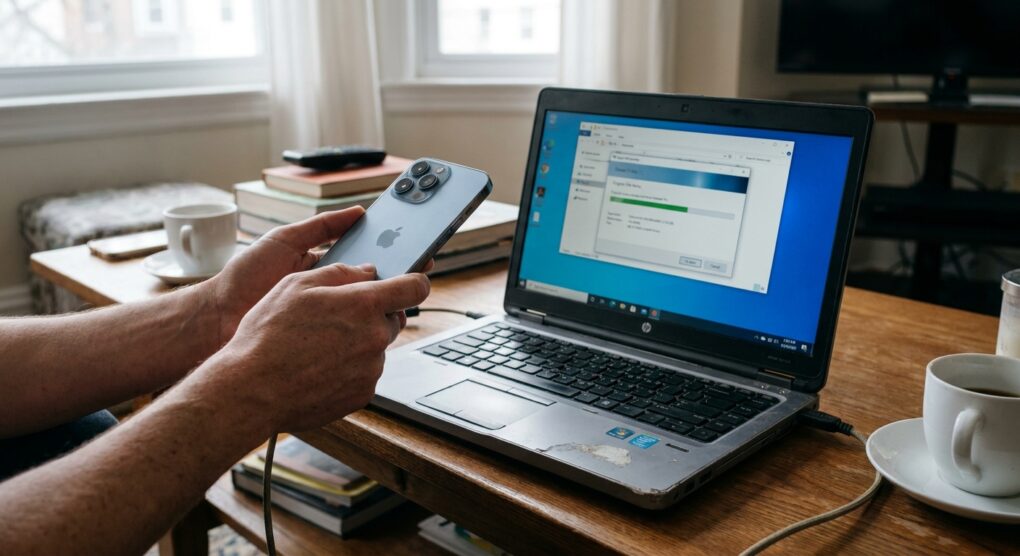
Just the other week, my wife handed me her iPhone. “I can’t take any more pictures,” she said, “it says my storage is full.” I knew what that meant: a few dozen massive video files of the kids that needed to get off the phone and onto our Windows home server. We’re talking gigabytes here, not just a few photos. My first thought, like most people, was to just plug it in with a USB cable. And, like most people, I quickly remembered why that’s usually a frustrating experience when you’re moving more than a handful of small files. The connection drops, transfers stall, and sometimes the files just refuse to copy altogether.
I’ve tried the usual suspects over the years. The basic USB connection through File Explorer often acts up, especially with truly heavy files. It’s a crapshoot. iCloud is fantastic for seamless syncing, but that 5GB free tier vanishes quicker than a free donut at the office, and then you’re paying or juggling storage. iTunes? Well, bless its heart, it’s always been more of a sync tool for music and apps rather than a robust file transfer utility for arbitrary large files. For the kind of bulk data I needed to shift—multi-gigabyte videos—I needed something more direct, more reliable, and crucially, still free. What I usually fall back on, and what consistently works, is leveraging your local network. No cloud storage limits, no finicky cables, just raw speed over Wi-Fi.
How-To: Transferring Files Using a Network Share
This method involves setting up a simple shared folder on your Windows machine and then connecting to it directly from your iPhone’s built-in Files app. It’s robust and leverages your home network’s speed.
Part 1: Setting up the Shared Folder on Windows
- Create a Transfer Folder: First, make a new folder on your Windows PC where you want to temporarily store these files. I usually make one right on my Desktop called “iPhone Transfers” or something similar.
- Share the Folder:
- Right-click on your new folder and select Properties.
- Go to the Sharing tab.
- Click on Advanced Sharing….
- Check the box for Share this folder.
- Click Permissions. Here, I usually select “Everyone” and give them Full Control. This is fine for a temporary home network transfer, but be mindful of security if this PC is accessible from outside your home network (which it shouldn’t be for this setup). Click OK twice to close the Advanced Sharing windows.
- Adjust Network Profile (Crucial): Windows often defaults to a “Public” network profile, which restricts sharing for security.
- Go to Settings > Network & internet > Advanced network settings > More network adapter options.
- Right-click your active network connection (usually Wi-Fi or Ethernet) and select Properties.
- Ensure File and Printer Sharing for Microsoft Networks is checked.
- Then, back in Settings > Network & internet, click on your active network connection (e.g., “Wi-Fi”).
- Under “Network profile type”, ensure it’s set to Private network. If it’s set to Public, sharing often won’t work. This was my rookie mistake once, spending an hour troubleshooting permissions only to find Windows had decided my home network was a Starbucks hotspot.
- Find your PC’s IP Address:
- Open Command Prompt (search for cmd in the Start menu).
- Type
ipconfigand press Enter. - Look for your active network adapter (e.g., “Wireless LAN adapter Wi-Fi”) and note down the IPv4 Address. It usually looks something like
192.168.1.Xor10.0.0.X. You’ll need this for your iPhone.
Part 2: Connecting and Transferring from iPhone
- Open the Files App: On your iPhone, open the built-in Files app.
- Connect to Server:
- Tap the three dots icon in the top-right corner.
- Select Connect to Server.
- In the Server field, type
smb://followed by the IP address you noted from your Windows PC. For example:smb://192.168.1.100. - Tap Connect.
- Enter Credentials:
- When prompted, select Registered User.
- Enter your Windows PC’s username and password. This is the same login you use when you start up your Windows computer. If your Windows account doesn’t have a password, you might need to temporarily set one up, or ensure the “Guest” option works if you configured your share that way. I always recommend using a registered user for reliability.
- Tap Next.
- Browse and Transfer:
- You should now see the shared folder you created on your Windows PC (e.g., “iPhone Transfers”). Tap to open it.
- Navigate to the files you want to transfer on your iPhone (e.g., On My iPhone, iCloud Drive, or any app folder like Recents or Browse). For photos and videos, they are typically found under Recents, or if you navigate to Photos, you can select and share them directly to the Files app.
- Tap Select in the top right, choose the heavy files you want to move.
- Tap the Share icon (a square with an arrow pointing up).
- Select Save to Files.
- Navigate to your connected Windows share (it will be listed under Locations, possibly named by your PC’s hostname or IP).
- Tap Save.
The files will now transfer over your Wi-Fi network. For large video files, this can take a while, but it’s generally much faster and more stable than a direct USB connection.
Things people often get wrong
I’ve walked through this countless times, and there are a few common pitfalls that can trip people up.
- Firewall Blocks: Windows Firewall (or any third-party antivirus/firewall) can block file sharing. If you’re having trouble connecting, temporarily disable your firewall on the PC to test. If it works, you’ll need to create an exception for File and Printer Sharing. Don’t leave your firewall off indefinitely.
- Network Profile: As I mentioned, setting your network profile to Private network is absolutely critical for sharing to work easily. Public profiles are too restrictive. I once spent a good half hour checking permissions and re-sharing folders, only to realize Windows had quietly reset my network profile to Public after an update. That was a bit of a head-scratcher until I remembered to check that specific setting.
- Permissions: Double-check that “Everyone” has “Full Control” on the shared folder’s permissions (under the Sharing tab > Advanced Sharing > Permissions). If you’re using a specific user account, make sure that account has the necessary NTFS permissions on the folder as well (under the Security tab in the folder’s Properties).
- Incorrect IP Address or Server Path: Make sure you’re typing
smb://followed by the *correct* IPv4 address of your Windows PC, and that both devices are on the *same* Wi-Fi network. A common mistake is using a public IP address or one from a different network segment. - Windows Login Credentials: The username and password you use to log into your Windows PC are what you need. If your account doesn’t have a password, you might need to create one temporarily for this to work, as Windows often requires authentication for SMB shares.
- Wi-Fi Interference: For truly massive files, ensure your Wi-Fi signal is strong and stable. Other devices streaming or heavy network usage can slow things down, and in rare cases, cause transfers to fail for gigabyte-sized files.
Leveraging a direct network share with the built-in Files app is, in my experience, the most reliable and free way to shuttle large files from an iPhone to a Windows machine.