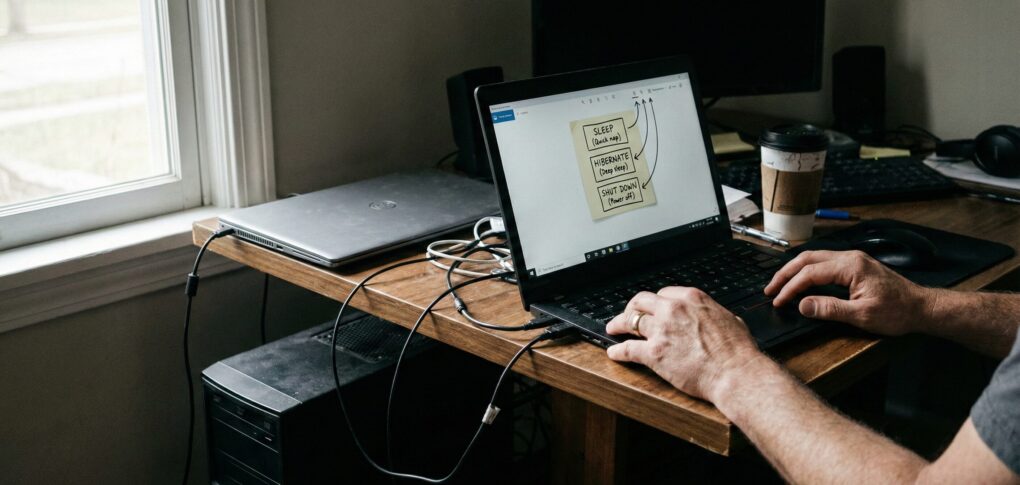
I recently had a client with a new Windows machine who was pulling their hair out trying to understand why their laptop’s battery was always dead after a weekend, despite them being “sure” they’d shut it down. Or why, sometimes, it took ages to wake up, and other times it was instant. It’s a common scenario, one I’ve seen play out countless times over the years. This confusion around power states – Sleep, Hibernate, and Shut Down – isn’t just academic; it impacts battery life, system stability, and overall user experience.
The problem, as I explained to them, isn’t usually a software bug. It’s often a misunderstanding of what each power option truly does. People tend to think of it as a simple on/off switch, or just shallow and deep sleep. But that’s an oversimplification that can lead to unexpected power drains or missed updates. My approach has always been to understand the underlying mechanics rather than just memorizing which button to press. Once you grasp what’s happening under the hood, managing your PC’s power becomes second nature.
Understanding PC Power States
Let me walk you through what each of these commonly used power states actually means for your system.
Sleep
- What it is: Your PC enters a low-power state, keeping your work and open applications in RAM. The CPU and most peripherals power down, but RAM remains powered, drawing minimal electricity.
- Pros: Incredibly fast resume, often in seconds. Ideal for short breaks.
- Cons: Still consumes power, leading to battery drain over longer periods. Unsaved work will be lost if power is completely interrupted.
- How to use it: Select Start > Power > Sleep. Closing a laptop lid usually triggers Sleep.
Hibernate
- What it is: Hibernate saves everything in your RAM (open programs, documents) to your hard drive in hiberfil.sys. Once saved, your computer powers down completely, consuming zero power.
- Pros: Excellent for longer absences where you want to preserve your session without power consumption. Power loss isn’t a concern.
- Cons: Resuming is slower than Sleep. The hiberfil.sys file can also be quite large, consuming gigabytes of disk space.
- How to use it: Hibernate isn’t always visible in Start > Power. To enable it:
- Search for “Control Panel” and open it.
- Go to Hardware and Sound > Power Options.
- On the left pane, click Choose what the power buttons do.
- Click Change settings that are currently unavailable.
- Scroll to Shutdown settings and check Hibernate (Show in Power menu). Click Save changes.
- You should now find Hibernate under Start > Power.
Shut Down
- What it is: A full Shut Down closes all programs, logs you off, clears RAM, and powers off the system entirely. No data is retained.
- Pros: Provides a true “clean slate.” Crucial for applying system updates, resolving minor software glitches, and a complete system reset. Consumes no power.
- Cons: Starting up takes the longest. You lose your current working session.
- How to use it: Select Start > Power > Shut down.
Things people often get wrong
Over the years, I’ve seen recurring confusions regarding these power states. The biggest one, and frankly, a mistake I made myself early in my career, revolves around Windows’ Fast Startup feature.
When Microsoft introduced Fast Startup (also called Hybrid Boot), it aimed to speed up boot times after a “Shut Down.” The trick is, it does this by performing a partial hibernation. When you click Shut down with Fast Startup enabled (which is the default), your user session closes, but the OS kernel session is saved to disk, similar to Hibernate. So, it’s not a truly “clean” shut down.
I learned this the hard way debugging a persistent network drive mapping issue. No matter how many times I “shut down,” the issue persisted. Only after a full power cycle (unplugging) or explicitly disabling Fast Startup did the problem vanish. It made me realize what I thought was a clean reboot wasn’t. This is why understanding the details truly matters.
- Updates and drivers: Since Fast Startup isn’t a true full shut down, critical system updates, driver installations, or firmware updates might not apply correctly. If you have odd driver behavior, try disabling Fast Startup and performing a full shut down. You can do this via the same Power Options path, just uncheck Turn on fast startup (recommended).
- Dual-booting: If you dual-boot Windows with another OS like Linux, Fast Startup can be problematic. Windows effectively “locks” the hard drive, which can lead to data corruption if another OS tries to write to the Windows partition. Always perform a full shut down (with Fast Startup disabled) when dual-booting.
- Persistent bugs: Minor software glitches or memory leaks can sometimes carry over across Sleep and Hibernate cycles. A true Shut Down (especially with Fast Startup disabled) is often the simplest “turn it off and on again” solution.
- Disk Space: Both Hibernate and Fast Startup utilize the hiberfil.sys file. If you’re short on disk space, this file can be substantial. If you never use Hibernate, you can reclaim this space by disabling it entirely. Open Command Prompt as administrator and run:
powercfg.exe /hibernate off
Understanding these different power states and their implications is key to maintaining a responsive, stable, and power-efficient system.