Just last week, I was setting up a new machine, and one of the first things I needed was my daily log rotation and cleanup script to run automatically. I’d built a small Python script for this years ago, and it’s a critical, if minor, task I don’t want to think about every morning. It processes old system logs, archives them, and purges anything past a certain age, keeping disk space tidy and making logs easier to search.
Now, you might be thinking, “Why not just drop it in the Startup folder?” And for some very basic, user-facing applications, that works fine. But for this script, I needed it to run at a specific time, even if I hadn’t logged in yet, and with elevated permissions to handle system logs. The Startup folder just runs programs *after* you’ve logged in, and it’s pretty bare-bones for scheduling. That’s where Windows Task Scheduler comes in. It’s been around forever, it’s robust, and frankly, it’s the right tool for anything beyond “launch this simple app when I start my session.” It offers granular control over when, how, and under what conditions a program executes, which is exactly what I needed.
How to Schedule a Program
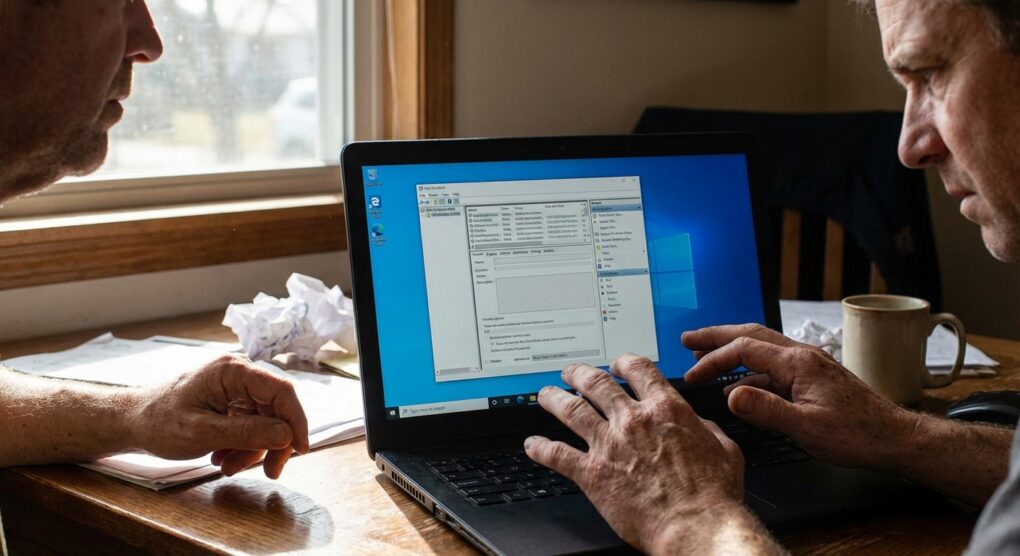
I usually start by opening the Task Scheduler application. You can find it by typing “Task Scheduler” into the Windows Start menu search bar and selecting the appropriate result.
Creating a Basic Task
For most straightforward, one-off or recurring tasks, the “Create Basic Task” wizard is sufficient. This is often my first port of call.
- On the right-hand Actions pane, click Create Basic Task….
- Name and Description: Give your task a clear Name, something like “Daily Log Cleanup Script,” and a brief Description. This helps you remember what it does six months down the line. I always try to be descriptive here. Click Next.
- Task Trigger: This is where you decide *when* the task runs. For my log cleanup, I chose Daily. You could also pick Weekly, Monthly, At computer startup (before any user logs in), When I log on, or When a specific event is logged. Choose your trigger and click Next.
- Daily Trigger (or selected trigger details): If you chose Daily, specify the Start date and time, and how often it should Recur every day(s). I set mine to run at 3:00 AM every day. Click Next.
- Action: Select Start a program. This is the most common action. Click Next.
- Start a Program:
- Program/script: Click Browse… and navigate to the executable (.exe), batch file (.bat), or script you want to run. For my Python script, I didn’t point directly to the .py file; instead, I pointed to
python.exe(e.g.,C:\Users\MyUser\AppData\Local\Programs\Python\Python39\python.exe). - Add arguments (optional): If you’re running a script like I am, this is crucial. For my Python script, I’d put
"C:\Path\To\My\log_cleanup.py" --cleanup-age 30here, replacing"C:\Path\To\My\log_cleanup.py"with the actual path to my script and--cleanup-age 30with any command-line arguments it needs. - Start in (optional): This sets the working directory for your program. This is often overlooked, but it’s vital if your program expects to find configuration files or other resources relative to its own location. I usually set this to the directory containing my script.
Click Next.
- Program/script: Click Browse… and navigate to the executable (.exe), batch file (.bat), or script you want to run. For my Python script, I didn’t point directly to the .py file; instead, I pointed to
- Summary: Review all your settings. If everything looks correct, click Finish. If you check the box for Open the Properties dialog for this task when I click Finish, you’ll get more advanced options, which I often do if it’s more than a simple launch.
Advanced Task Configuration (Using “Create Task…”)
For more complex scenarios, or to fine-tune a task created with the basic wizard, you’ll use the full “Create Task” dialog. I go straight here if I know I need specific permissions or conditions.
On the right-hand Actions pane, click Create Task…. You’ll see several tabs:
- General:
- Name and Description, similar to the basic wizard.
- Security options: This is important. I always set Run whether user is logged on or not for background tasks like my log cleanup. This means it’ll run even if I’m not at my desk. If you select this, you’ll be prompted for credentials when saving the task.
- Crucially, check Run with highest privileges if the program needs administrative rights (which mine does, to modify system logs).
- Triggers: You can configure multiple, more advanced triggers here. For example, “at startup” AND “daily at 3 AM” AND “on a specific event.” You can also set delays, repetitions, and expiration dates.
- Actions: Similar to the basic wizard, but you can add multiple actions to a single task, like running two different scripts one after another.
- Conditions:
- I often use this to specify Start the task only if the following network connection is available, especially for tasks that pull data from network shares or the internet.
- You can also control if it runs only on AC power, or if the computer is idle.
- Settings:
- Stop task if it runs longer than: A lifesaver for buggy scripts. I typically set a reasonable limit, say 1 hour, for my cleanup script.
- If the task is already running, then the following rule applies: I usually leave this at Do not start a new instance, as running two cleanup scripts simultaneously could cause issues.
Usual problems
Over the years, I’ve seen a few common pitfalls that trip people up when using Task Scheduler:
- Permissions, Permissions, Permissions: If your program needs elevated rights (like writing to system folders or modifying protected settings), you absolutely must check Run with highest privileges under the General tab. Also, ensure the user account under which the task is running (often SYSTEM or an Administrator account you specify) actually has the necessary filesystem or registry permissions. It’s a common oversight.
- Absolute Paths are Your Friends: Always, and I mean always, use full, absolute paths for your Program/script and any files or scripts passed in Add arguments (optional). Relative paths can behave unpredictably depending on the task’s environment.
- Scripts Need Interpreters: If you’re trying to run a batch file (.bat), a PowerShell script (.ps1), a Python script (.py), or a VBScript (.vbs), you can’t just point Task Scheduler directly to the script file. You need to call the appropriate interpreter.
- For a batch file:
cmd.exein Program/script, and/c "C:\Path\To\Your\script.bat"in Add arguments. - For a PowerShell script:
powershell.exein Program/script, and-NoProfile -ExecutionPolicy Bypass -File "C:\Path\To\Your\script.ps1"in Add arguments. - For a Python script:
python.exein Program/script, and"C:\Path\To\Your\script.py"in Add arguments.
- For a batch file:
- Interactive vs. Non-Interactive: If you set a task to Run whether user is logged on or not, it runs in a non-interactive session. This means it generally can’t display UI elements or interact with the user’s desktop. If your program needs to show a window or prompt, it likely won’t work in this mode.
I remember one time I was setting up a Python script, something that parsed a few log files. I had it running fine manually, but when I scheduled it, it kept failing. It turned out the script used a relative path internally to find a configuration file. When Task Scheduler ran it, the ‘current directory’ wasn’t what I expected. I’d forgotten to explicitly set the Start in (optional) field in the Action tab to the script’s directory. Once I did that, it worked perfectly. A small oversight, but it cost me a good hour of head-scratching and checking log files.
Ultimately, mastering Task Scheduler provides a reliable, built-in mechanism to automate tasks on Windows, freeing you from manual routines and ensuring critical processes run exactly when and how they should.