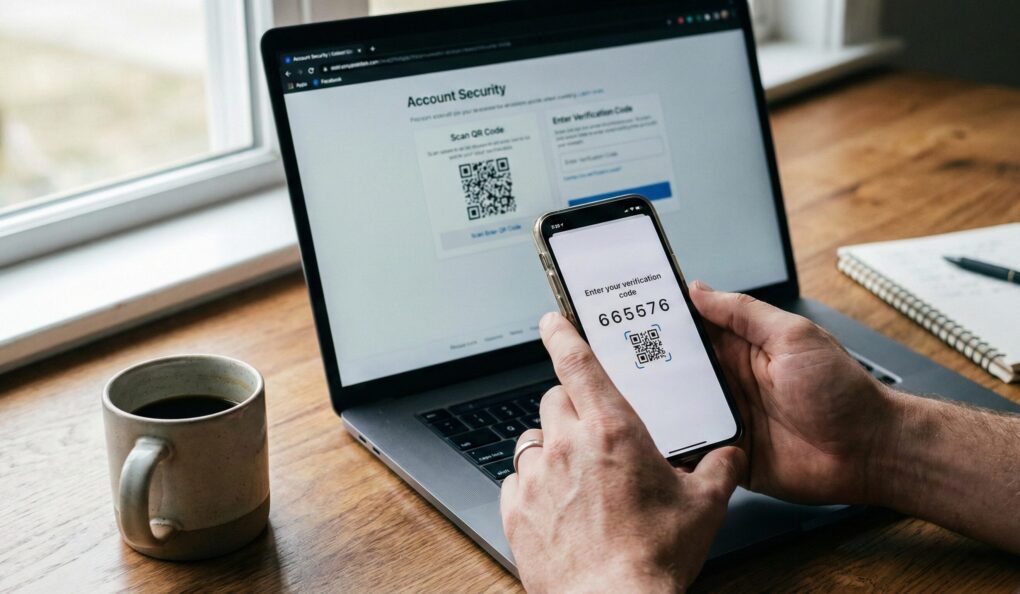
If you are still relying on just a password—even a complex one—you are going to get hacked. Your password has already been stolen from some database breach, it just hasn’t been used yet. I spend half my week restoring access to accounts that were using “12345678” or worse, using the same five-year-old password on everything. Two-Factor Authentication (2FA) is not an option; it is mandatory if you have anything worth protecting, like money, source code, or pictures of your deployment diagrams. It’s the cheapest insurance you can buy, and it takes five minutes to set up. Stop relying on your memory and start relying on math.
Why SMS 2FA is a Joke
Most websites default to offering SMS (text message) codes. I tell everyone to refuse this option. SMS 2FA is only marginally better than no 2FA at all, and that’s being generous. The core vulnerability is SIM swapping. A scammer social engineers your phone carrier into moving your phone number to their SIM card. They instantly receive all your SMS codes and take over your accounts. I’ve seen it happen to high-profile clients. I exclusively use TOTP (Time-based One-Time Password) codes generated by an authenticator app. These codes are generated locally on your device based on a shared secret key and the current time. The phone company can’t intercept them. They are infinitely more secure.
The How-To: Setting Up a Real Security Layer
Forget Google Authenticator unless you like being locked out forever. I use an app that syncs its tokens securely, because losing your phone should not mean losing your entire digital life.
1. Choosing Your Authenticator App
- Authy: This is what I prefer. It allows you to encrypt your tokens and sync them to a cloud backup. If your phone gets run over by a truck, you can recover your 2FA tokens instantly on a new device using your master password.
- Microsoft Authenticator: Decent, and it supports syncing to your Microsoft account.
- Google Authenticator: Avoid this one unless you are hyper-vigilant. It historically stores tokens only locally, meaning if you lose your phone, your tokens are gone forever. While they have recently added cloud backup, the original design was an anti-feature.
2. The Setup Protocol (The QR Code Secret)
The process is the same for almost every financial institution, email provider, and cloud service.
- On the service’s website (e.g., Gmail, GitHub, Coinbase), navigate to Security Settings or Two-Factor Authentication.
- Select the option to use an Authenticator App or TOTP.
- The website will display a QR Code on the screen. This code contains the shared secret key—the unique string of characters that links your account to your app.
- Open your authenticator app (Authy). Click the + sign or Add Account and select Scan QR Code.
- Scan the code on the computer screen. The app will immediately generate a six-digit code that changes every 30 seconds.
- The website will ask you to enter the newly generated code to confirm the setup. Once confirmed, 2FA is active.
That QR code is the master key. I always tell people to take a screenshot of that QR code and save it somewhere extremely secure (like an encrypted drive on a NAS), just in case the app fails during migration. That’s a “dirty” backup for your shared secret.
3. Saving the Recovery Codes (The Emergency Bypass)
This is the most crucial step, and the one everyone skips. Every service will give you a list of 8 to 10 Backup or Recovery Codes after you enable 2FA. These are one-time-use passwords that let you log in if you lose your phone and your authenticator app.
- Print these codes immediately.
- Do not save them as a text file in the same cloud drive the account protects (e.g., don’t save the Google codes in Google Drive). That is redundant security that provides zero redundancy.
- I prefer storing them in two places: A physical paper copy locked in a fireproof safe, and a digital copy saved in an offline, encrypted vault (like a KeePass database) that I can access from another computer.
4. The Hardware Key (The Best Security)
If you manage servers or sensitive financial data, upgrade. I use a FIDO2/WebAuthn compatible hardware key (like a YubiKey). This is the highest level of security. It replaces the app entirely. Instead of entering a code, you physically plug in the USB key and press a button to confirm the login. Since the key must be physically present, SIM swapping and remote hacking are completely mitigated. I only use this for my primary work accounts and email, since it is still not supported everywhere.
Common mistakes
Forgetting to Migrate Tokens
I once lost my phone and realized I hadn’t synced my tokens from the old phone to the new one before wiping the old device. I spent a whole day dealing with the recovery process for 15 different corporate and personal accounts. Before getting a new phone, open your authenticator app and ensure all tokens have been properly backed up, or manually transfer them by setting up 2FA again on the new phone before deleting the old one. If you use Authy, check that the “Multi-Device” setting is enabled.
Storing Recovery Codes in the Wrong Place
If you save your Google recovery codes in a plaintext file on your desktop, and a hacker steals your PC password, they now have your master password and your 2FA bypass codes. They just log straight in. The recovery codes are sensitive. Treat them like cash. Print them and put the paper in a secure place where a separate physical key is required.
Assuming the App is Backed Up
If you use Google Authenticator without enabling its specific, recent cloud backup feature, simply backing up your phone to iCloud or Google Drive usually doesn’t save the cryptographic keys for 2FA. The tokens are tied to the local device’s security enclave. Always assume the tokens are disposable unless you explicitly verified the cloud sync within the app’s settings.
Enable 2FA, ditch the text messages, and treat your recovery codes like they are the key to your bank vault.