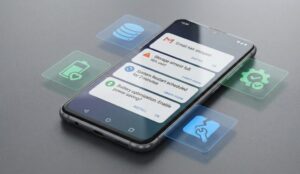
Ah, the dreaded “Download Pending” message in the Google Play Store. It’s a classic. You hit the install button, you wait, and wait some more, only to see that infuriating little spinner and the message: “Download Pending.” It’s not an error message in the traditional sense, just a stubborn refusal to do anything, leaving you wondering if your phone’s just being difficult or if something’s genuinely broken. I’ve hit this roadblock more times than I care to admit, on my own devices and on client machines I’ve supported.
Many folks, myself included when I first started troubleshooting Android, tend to jump straight to clearing the cache and data for the Google Play Store app itself. And sure, that’s often a good first step, a necessary one even. But for a persistent “Download Pending” status, it often falls short because the problem usually isn’t just with the Play Store app in isolation. Android’s download process relies on a few intertwined services, and if one of them is jammed up, the whole thing grinds to a halt. My approach tackles the common culprits systematically, getting to the heart of what’s truly holding things up rather than just poking at the symptoms.
How To Get Downloads Moving Again
I usually follow a specific sequence here, starting with the quicker, less intrusive steps before moving on to the more disruptive ones. Always test after each major step.
Initial Checks (The Basics First)
- Restart Your Device: Look, I know it’s the oldest trick in the book, but for transient software glitches, a good old reboot can often clear out whatever temporary snag is causing the “Pending” status. Do this first.
- Check Your Internet Connection: Is your Wi-Fi strong? Is mobile data enabled and working? Open a web browser and try to load a page. A weak or spotty connection can manifest as a pending download.
- Verify Storage Space: This one gets me sometimes. Go to Settings > Storage. Make sure you have ample free space. A few hundred megabytes, at least. Android often doesn’t give a useful “low storage” error for pending downloads; it just sits there.
- Cancel Other Downloads/Updates: Open the Google Play Store, tap your profile icon (top right), then Manage apps & device > Manage. If there are other apps updating or downloading, try to cancel them. Play Store typically only handles one download at a time.
Systematic Troubleshooting (The Real Work)
If the quick checks don’t fix it, it’s time to dig deeper.
- Clear Google Play Store Cache & Data:
- Go to Settings > Apps > See all apps (or App management on some devices).
- Find and tap on Google Play Store.
- Tap Storage & cache.
- First, tap Clear cache.
- Then, tap Clear storage (or Clear data). This will reset the Play Store app to its default state, and you might have to accept terms of service again when you open it.
- Clear Google Play Services Cache & Data:
This is often the crucial step people miss, and frankly, it’s the mistake I made the first time I tackled this issue seriously. I was so focused on the Play Store app itself that I completely overlooked its powerful backend. I thought, “Why would Play Services be the problem if it’s the Play Store that’s stuck?” Big mistake. Play Services handles the core background processes for Google apps, including downloads. If it’s got a corrupted cache or data, nothing else will work right.
- Go to Settings > Apps > See all apps.
- Find and tap on Google Play Services. You might need to tap the three-dot menu and select Show system apps if you don’t see it immediately.
- Tap Storage & cache.
- First, tap Clear cache.
- Then, tap Manage space (or Manage storage) > Clear all data. This won’t delete personal data, but it will clear internal settings for Play Services.
- Disable and Re-enable Google Play Store:
- Go to Settings > Apps > See all apps.
- Find and tap on Google Play Store.
- Tap the Disable button. Confirm the action.
- Wait about 30 seconds, then tap the Enable button. This can sometimes force a fresh re-initialization.
- Check Date & Time Settings:
- Go to Settings > System > Date & time.
- Ensure Set time automatically (or Use network-provided time) is enabled. Incorrect date and time settings can interfere with secure connections (SSL certificates), preventing Play Store from communicating correctly.
- Reset Network Settings:
If you suspect a deeper network configuration issue on the phone, this can sometimes help. Be aware, this will clear all saved Wi-Fi networks and Bluetooth pairings.
- Go to Settings > System > Reset options (or Reset network settings on some devices).
- Tap Reset Wi-Fi, mobile & Bluetooth. You’ll need to re-enter your Wi-Fi password afterwards.
- Remove and Re-add Your Google Account:
This is a more drastic step, but it can resolve account-specific sync issues. You’ll need to sign back into your Google account on the device.
- Go to Settings > Passwords & accounts (or Accounts).
- Select your primary Google account.
- Tap Remove account.
- Restart your device.
- Go back to Settings > Passwords & accounts and tap Add account to sign back in.
Things people often get wrong
Through years of this, I’ve seen a few patterns in where people stumble when dealing with “Download Pending”:
- Ignoring Google Play Services: As I mentioned, people fixate on the Google Play Store app itself. Play Services is the engine room, and if it’s got a problem, everything built on top of it, including the Play Store, will misbehave.
- Not Checking Basic Prerequisites: It sounds silly, but how many times have I diagnosed a “download pending” only to find the user’s phone had zero storage left, or their Wi-Fi was actually disconnected? Always rule out the basics first; the error message is generic and unhelpful.
- Impatience After Clearing Data: After you clear data for Play Store or Play Services, it sometimes takes a minute for the services to re-initialize and sync with Google’s servers. Don’t immediately try to download another app; give it a good 30-60 seconds, or even reboot, before trying again.
- Assuming it’s always software: Occasionally, what looks like a Play Store problem is really a deeper network issue, perhaps a router misconfiguration, a VPN that’s misbehaving, or even ISP problems. While my steps focus on the device, remember to rule out external factors if the issue persists across multiple devices on the same network.
When facing a stubborn “Download Pending” error, a systematic approach starting with a deeper look at core services like Google Play Services often proves more effective than just poking at the Play Store app itself.