Bluetooth is a technology that works perfectly right up until the moment you actually need it, then it commits ritual suicide. I get a ticket about connecting earbuds at least once a day. The problem is that the little Bluetooth icon in your status bar is a liar. It says “Connected,” but your audio is either silent, garbled, or stuck on the terrible Hands-Free Profile (HFP), which makes your music sound like it’s being played through a tin can. This happens because the host device (your PC or phone) saves the initial pairing key but forgets the correct audio profile (A2DP or Stereo) or the host adapter’s cache gets corrupted. The solution is not to click “Connect” five more times; it’s to purge the corrupt pairing data from both the host and the headphones.
Why Simple Disconnect/Reconnect Fails
When you click “Disconnect” and then “Reconnect,” you are using the same corrupted pairing key. The host device remembers the old handshake and tries to force the same broken configuration. If the A2DP (Advanced Audio Distribution Profile) for high-quality stereo sound failed on the first handshake, it will keep failing on subsequent attempts until you perform a full reset on both ends. Think of it like a DNS cache; the machine is stubbornly holding onto the bad address. You have to force the cache to clear on the OS level and then force the earbuds to forget every device they’ve ever met.
The How-To: The Triple Reset Protocol
I always start with this three-step protocol, because it fixes 90% of pairing issues before I have to touch the device manager.
1. Purge the Host Connection
You must delete the old pairing key entirely.
- Windows: Go to Settings > Bluetooth & devices. Click on the troublesome headphone entry and select Remove device.
- Mac: Go to System Settings > Bluetooth. Find the device, hover over it, and click the “i” icon, then select Forget This Device.
- iOS/Android: Go to Bluetooth Settings, tap the gear/info icon next to the device, and select Forget or Unpair.
2. The Headphone Hard Reset (The Magic Button)
This is where everyone fails because they lost the manual. You have to force the earbuds to forget every device they’ve ever paired with. This usually involves a strange button combination.
- Put the headphones in their case, if applicable, then take them out.
- Find the pairing or power button. It is usually one of those.
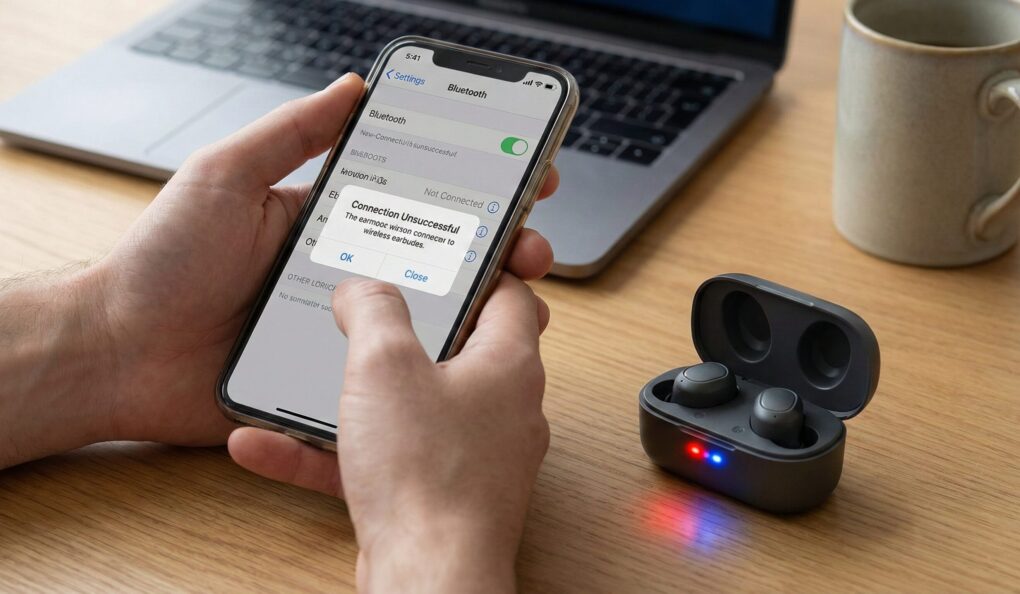
- Hold the button (or combination of buttons) for 10 to 15 seconds. You are looking for an indicator light to flash red and blue rapidly, or turn solid red/white, indicating factory reset mode.
- Check your manual online for the precise “factory reset” sequence. If you can’t find it, the 15-second press usually works for most cheap true wireless earbuds.
3. The Adapter Reboot
If the first two steps fail, the problem is your computer’s Bluetooth hardware adapter’s internal cache. Instead of restarting the PC (which takes too long), I disable and re-enable the adapter.
- Windows: Press Windows + X, select Device Manager. Expand Bluetooth. Right-click your specific Bluetooth adapter (it will usually be Intel or Realtek) and select Disable device. Wait five seconds, then right-click and select Enable device. This flushes the hardware driver cache without rebooting.
- Mac (The Dirty Fix): Macs are trickier. Open System Settings > Bluetooth. Turn Bluetooth off, wait ten seconds, then turn it back on. If that doesn’t work, open Finder, hold Option, click the Go menu, select Library, and manually delete the file named
com.apple.Bluetooth.plist. Restart your Mac. This is a nuclear purge of the Bluetooth configuration.
Usual problems
The Hands-Free Profile (HFP) Trap
Your headphones connect, but the audio sounds muffled and terrible. This is because Windows defaulted to the Hands-Free Profile (HFP) instead of the high-quality A2DP (Stereo) profile. HFP is only meant for voice calls and uses aggressive compression. The Fix: Press Windows + R and type mmsys.cpl. This opens the old Sound control panel. Go to the Playback tab. You will often see two entries for your headphones: one named “Stereo” and one named “Hands-Free” or “Headset.” Right-click the Hands-Free entry and select Disable. This forces Windows to use the high-quality Stereo profile for all audio output.
Interference from other Devices
Bluetooth operates in the crowded 2.4 GHz frequency band—the same one used by cheap Wi-Fi, microwaves, and many cordless phones. If you are having constant dropouts or stuttering, check your environment. I once spent an hour trying to fix a sound delay and forgot the earbuds were still connected to my work laptop lying in the other room, and they were fighting a nearby 2.4 GHz security camera for bandwidth. Move your router away from your computer, or manually force your computer’s Wi-Fi to use the 5 GHz band.
Multipoint Connection Chaos
Many modern headphones support multipoint (connecting to two devices at once). This feature is unstable and the primary cause of sudden disconnections. If your earbuds are connected to your PC, but they were recently used by your phone, the phone will constantly try to steal the audio stream back, even if it’s sitting idle. Disable multipoint in the headphone’s companion app, or manually disconnect the headphones from the second device before pairing them with the primary device.
The Low Battery Effect
Bluetooth negotiation requires a certain amount of power to maintain the connection and process the audio codec (like aptX or LDAC). When your earbuds drop below 10% battery, they often intentionally fall back to the low-power, low-quality HFP mode to save juice, or they disconnect entirely. If the fix is intermittent, charge your headphones fully before starting the troubleshooting process.
Forget the status bar, purge the pairing data from both the host and the adapter, and always disable the Hands-Free profile.