Just last week, my own workstation decided to greet me with nothing but a silent, inky black screen when I hit the power button. No spinning fans, no BIOS logo, just… dark. The power LED was on, but nothing else. I’ve seen this countless times over the years, and while it’s never a *good* sign, it’s usually not as dire as it seems, provided you know where to look.
When you’re faced with a completely black screen and no visible POST (Power-On Self-Test) messages, the system often isn’t even getting to the point of trying to display video. It’s failing much earlier, during the initial hardware check. This is precisely where those often-ignored, tiny little beeps from your motherboard’s speaker become your best friends. Most people either don’t realize they exist, or they’ve just grown used to a single “good” beep and ignore anything else. But those patterns of long and short beeps are designed to tell you exactly what’s gone wrong, even when your display isn’t working.
How to Diagnose with POST Beep Codes
Here’s how I approach this, step-by-step, when my machine or a client’s machine refuses to display anything on boot:
- Power Down and Disconnect: First things first, completely power off the machine and unplug it from the wall. Press and hold the power button for 10-15 seconds to discharge any residual power. Then, disconnect all non-essential peripherals: USB devices, network cable, external drives, even your monitor for a moment. We want the bare minimum to boot.
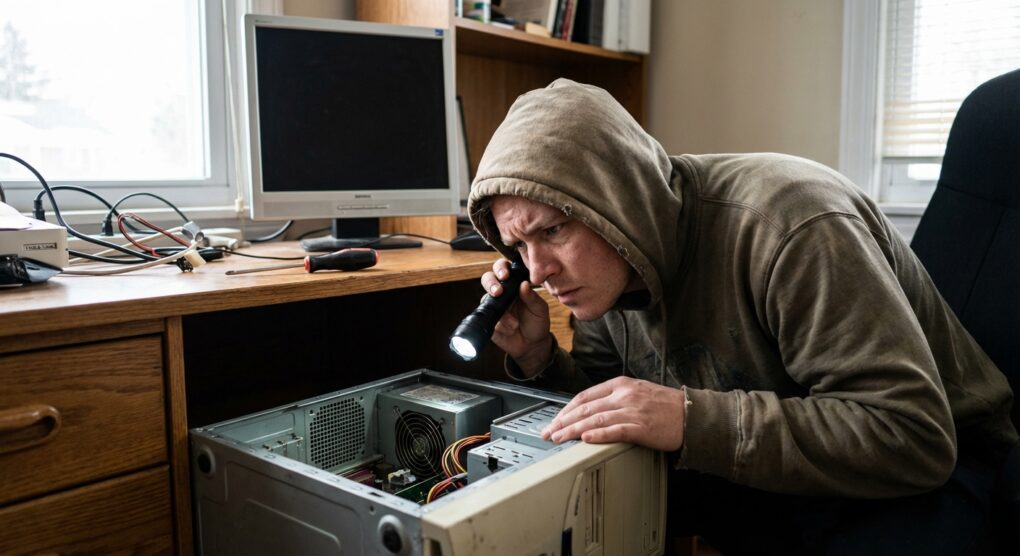
- Open the Case: Remove the side panel of your computer case. Take your time, don’t force anything.
- Locate the Motherboard Speaker: This is crucial. Some motherboards have a small, internal speaker built right onto the board. Others require an external speaker connected to a specific header, usually labeled SPEAKER or SPK. If you don’t have one, you might have to temporarily connect a small PC speaker (you can often salvage one from an old case or buy them cheap online) to hear the codes. Without this, you’re flying blind.
- Minimal Boot Configuration:
This is where we strip things down. For initial testing, I typically remove everything that isn’t absolutely necessary for the system to attempt to POST:
- Unplug all storage drives (HDDs, SSDs, optical drives).
- Remove any expansion cards (dedicated graphics card if your CPU/motherboard has integrated graphics, network cards, sound cards, etc.).
- If you have multiple RAM sticks, remove all but one. Try different slots and different sticks if you suspect RAM is the issue. If your CPU has integrated graphics, ensure your monitor is plugged into the motherboard’s video output. If you only have a dedicated GPU, leave that one in.
The goal here is to reduce the number of variables. If it boots with minimal components, you can add them back one by one until you find the culprit.
- Power On and Listen: Plug the system back in (but not the monitor yet). Power it on and listen carefully. Don’t stare at the screen; focus on the sounds. What you’re listening for is a distinct pattern of beeps. It might be a single long beep, a series of short beeps, or a combination (e.g., one long, two short).
- Identify Your BIOS: The beep codes aren’t universal. They depend on your motherboard’s BIOS manufacturer (AMI, Award, Phoenix, UEFI setups sometimes emulate older codes). You can usually find this information printed on the BIOS chip itself, or you can check your motherboard’s manual.
- Consult the Manual/Manufacturer Website: Grab your motherboard manual—the physical one, if you still have it, or pull up the PDF from the manufacturer’s support site, searching by your exact motherboard model number. Look for the “POST Beep Codes” or “Troubleshooting” section. Match the beep pattern you heard to the corresponding error description.
- Interpret and Troubleshoot:
Once you’ve identified the code, the manual will point you to the faulty component:
- RAM: Often indicated by 3-4 short beeps or a repeating pattern. Try reseating the RAM, testing sticks one by one, or trying different slots.
- Graphics Card: One long, two short beeps (Award BIOS) is common. Reseat the card, check its power connectors, or try a different card if available.
- CPU: A continuous beep or no beeps at all can sometimes point to a CPU issue, especially if the CPU fan isn’t spinning or the system shuts down quickly. This is less common but more serious.
- Power Supply Unit (PSU): No beeps, no fan spin, or erratic power delivery could indicate a failing PSU.
Systematically work through the suggested fixes for the identified code.
- Reassemble and Test: Once you’ve replaced or fixed the faulty component, power everything down, reassemble the system, reconnect your peripherals, and give it a test run.
Common mistakes
One genuine mistake I made years ago, early in my career, was immediately jumping to the graphics card or display cable, thinking “black screen must mean video problem.” I spent ages reseating the GPU, checking cables, and even trying a different monitor. It was only after I finally noticed the pattern of short, repeating beeps (and looked them up for the first time) that I realized the CPU wasn’t being detected, probably due to a partially seated CPU power connector that I’d missed during the initial build. I was so focused on the symptom (no display) that I ignored the diagnostic information the system was literally screaming at me. It taught me to always listen first.
Another common mistake is assuming that “no beeps” means no problem or that there’s no speaker. Always verify you have a functioning speaker connected; otherwise, you’re missing critical diagnostic information from the system’s initial self-check.
Don’t forget about the power connections to individual components. A dedicated GPU almost always needs supplemental power from the PSU. RAM sticks need to be fully seated in their slots, often requiring a firm push until the clips engage on both sides.
Always start by listening for the beeps; they’re the system’s clearest way of telling you what’s fundamentally wrong before anything else can even begin to happen.