The phantom “Offline” status is my least favorite ticket
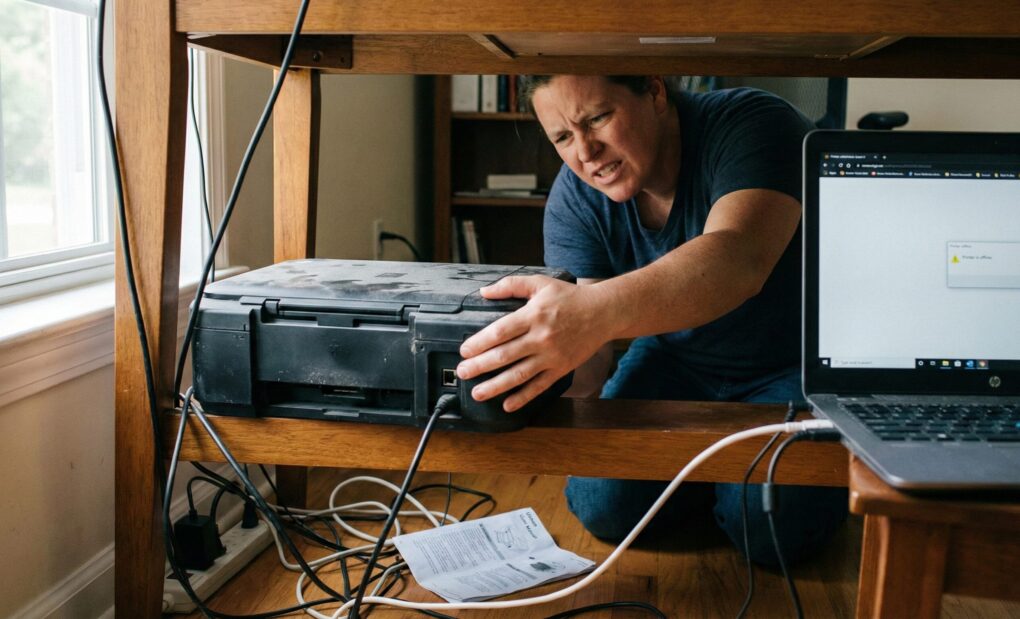
I distinctly remember the last time I walked into an accounting department to fix a “broken” printer. The LED lights were solid green. The network cable was blinking happily. The user could even ping the device from their command prompt. Yet, Windows stubbornly insisted the device was “Offline,” holding a queue of twenty crucial invoices hostage. It is a specific kind of frustration when the hardware is working perfectly, the network is fine, but the operating system refuses to acknowledge reality.
Most people just restart the printer. That usually works for about an hour, maybe a day if you are lucky, before the status drifts back to offline. I spent years doing that—power cycling devices and hoping for the best—before I realized that the “Offline” status usually isn’t about power at all. It is almost always a failure of the bidirectional communication protocol between the Windows print subsystem and the device’s network card. The OS sends a specific query, doesn’t get the exact handshake it expects, and defaults to “Offline” to save resources. If you want to fix this permanently, you have to stop treating it like a hardware glitch and start treating it like a bad configuration.
Why the default setup fails us
The core issue usually lies in how modern operating systems try to make things “easy.” When you add a printer today, Windows often defaults to a WSD (Web Services for Devices) port. In theory, this is great because it auto-discovers capabilities. In practice, WSD is incredibly temperamental on busy networks. It loses track of the device if the router hiccups or if the printer goes into deep sleep.
My approach ignores the automatic discovery completely. I force the OS to speak to the printer over a Standard TCP/IP port with very specific settings. This strips away the “smart” features that cause the dropouts and creates a dumb, reliable pipe for data. It’s less elegant, but it works every single time.
How to force the printer back online
Before you reinstall drivers (which is a waste of time 90% of the time), follow this sequence to stabilize the connection.
1. Confirm the IP Address
First, walk to the printer and print a Network Configuration Page from the physical menu. Do not trust what your computer says the IP is. Get the actual IP from the sheet of paper. Let’s say it’s 192.168.1.50.
Open a command prompt (CMD) on your computer and type ping 192.168.1.50. If you get replies, the hardware is fine. The issue is software. If you get “Destination host unreachable,” you have a network problem, not a printer problem.
2. Switch from WSD to Standard TCP/IP
This is the most effective fix I have in my arsenal.
- Go to Control Panel > Devices and Printers. Do not use the modern “Settings” app; it hides the menus we need.
- Right-click your ghosted printer and select Printer Properties (not just Properties).
- Click the Ports tab.
- Look at the checked port. If the description says “WSD Port,” that is your problem. Even if it says “Standard TCP/IP,” we are going to make a new one to be sure.
- Click Add Port…, select Standard TCP/IP Port, and click New Port.
- Enter the IP address you found in step 1. Windows will try to detect it.
3. The SNMP Trap
This is the secret sauce. Once the port is created (or if you are editing an existing TCP/IP port), you need to configure it.
- In the Ports tab, highlight your TCP/IP port and click Configure Port.
- You will see a checkbox at the bottom: SNMP Status Enabled.
- Uncheck this box.
Here is why: SNMP (Simple Network Management Protocol) is used by Windows to ask the printer questions like “Do you have paper?” or “Are you low on toner?” If the printer fails to answer this specific query due to a firewall rule, a firmware bug, or deep sleep mode, Windows assumes the device is dead and marks it Offline. By unchecking this, you tell Windows: “I don’t care about the status, just send the data blindly.” The printer will wake up and print, even if Windows can’t see the toner level.
4. Restart the Print Spooler
Now that the communication channel is fixed, clear the cobwebs.
- Press the Windows Key and type “Services.”
- Find Print Spooler in the list.
- Right-click it and select Restart.
This flushes the temporary memory and forces the OS to look at the port again with your new settings.
Common mistakes
I have fixed this issue hundreds of times, and I still occasionally trip over my own feet. The biggest mistake people make—and I made this early in my career—is failing to set a Static IP on the printer itself. I once spent three hours troubleshooting a connection, convinced it was a driver conflict. I rebuilt the port, restarted the server, and swapped cables. It turned out the office router had rebooted over the weekend, and DHCP assigned the printer a new IP address (ending in .106 instead of .105). My computer was screaming into the void at the old address. Always log into your router or the printer’s web interface and reserve the IP address so it never changes.
Another classic blunder is the “Use Printer Offline” toggle. In the print queue window (where you see the list of stuck documents), there is a menu item under “Printer” called Use Printer Offline. If this is checked, no amount of technical wizardry will make it print. It is a manual override intended for laptop users to queue documents while on a plane, but users often click it accidentally.
Finally, beware of “Copy 1” syndrome. When you plug a USB printer into a different USB port, Windows often installs a second instance of the device named “Printer Name (Copy 1).” You might be troubleshooting the original icon while your software is trying to print to the “Copy 1” icon which is currently grayed out. Always check which exact device name the application is trying to use.
By forcing a standard TCP/IP connection and disabling the SNMP status check, you effectively bypass the fragile “smart” checks that falsely flag printers as offline.