I get asked about Wi-Fi passwords a lot. Not just for setting up a new laptop or a guest’s phone, but often for things like an old network printer, a smart home device that only supports 2.4GHz and needs the exact SSID, or when a client needs to reconfigure an access point after a power outage. The common thread is always the same: “I’m connected, but I don’t know the password.” Sometimes, they just want to write it down somewhere safe, which is a sensible idea I always encourage.
For years, the answer for an iPhone user was a bit of a dance. You couldn’t just tap a button and see it. Apple, in their wisdom, prioritizes security, and that meant the Wi-Fi password was tucked away deep in the Keychain, accessible mostly via a Mac if you had iCloud Keychain syncing enabled. On Android, it was usually a bit simpler, often involving a QR code. But things change, and with recent OS updates, both platforms have made it significantly easier to retrieve a password directly from the device. I recently had to walk a colleague through this exact process, and it reminded me just how many people don’t know it’s now possible.
How to View Saved Wi-Fi Passwords
On an iPhone (iOS 16 and later)
This is where Apple finally made things genuinely convenient, as long as you’re on iOS 16 or newer. If you’re not, you’re out of luck using this direct method on the phone itself. You’ll need to update your OS first.
- First, open your Settings app. It’s the grey gear icon.
- Scroll down a bit and tap on Wi-Fi. This will show you all the networks currently in range, as well as the one you’re connected to.
- Look for the network you need the password for. It can be the one you’re currently connected to (it’ll have a blue checkmark next to it) or any other network you’ve connected to in the past that’s still saved on your device.
- Tap the information icon (i) to the right of the network name. It’s a small blue circle with an ‘i’ in the middle.
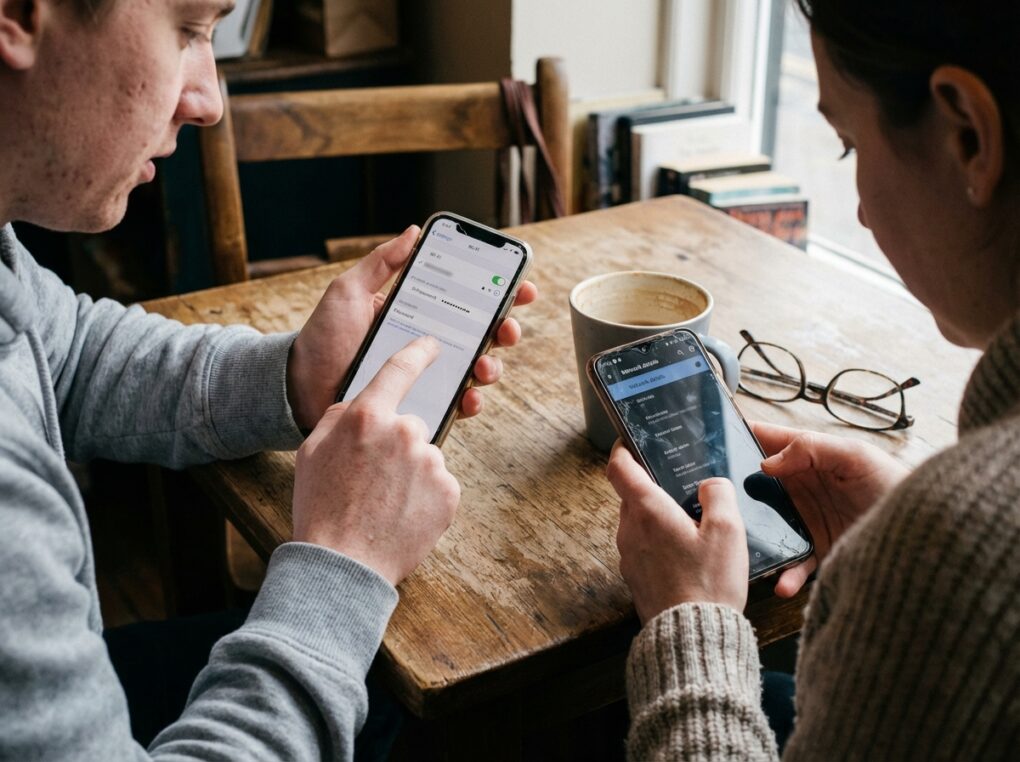
- On the next screen, you’ll see various details about that network. Look for the row labeled Password. It will likely show a string of asterisks or dots.
- Tap on the “Password” field itself. This is the small detail that tripped me up the first time I tried this on my own device after the iOS 16 update. I was expecting it to just appear, but Apple wants to be sure it’s actually *you* trying to look at it.
- Your iPhone will then ask for authentication, usually via Face ID, Touch ID, or your device passcode. Provide it.
- Once authenticated, the password will be revealed in plain text. You’ll also see a Copy button next to it, which is handy if you need to paste it elsewhere, like into a new device setup.
On an Android Device (Android 10 and later)
Android has typically been a bit more open with this kind of information, though the exact menu paths can vary slightly depending on your phone’s manufacturer (Samsung, Google Pixel, OnePlus, etc.) and its custom Android skin. I’ll provide the most common path, but you might need to poke around a little if your manufacturer has moved things.
- Open your Settings app. This is usually a gear icon.
- Look for a section related to network connections. This is often labeled Network & internet, Connections (on Samsung phones), or just Wi-Fi & Network. Tap on it.
- Next, tap on Internet or Wi-Fi. This will display your current Wi-Fi status and a list of available networks.
- To find a saved password:
- If you need the password for the network you are currently connected to, tap on its name directly.
- If you need the password for a previously connected network, look for an option like Saved networks or Manage saved networks. Tap on that, then select the specific network from the list.
- Once you’re on the detail screen for the specific Wi-Fi network, look for an option that says Share. This often appears as a QR code icon, or sometimes a text label. Tap on it.
- Your Android device will then prompt you to authenticate using your screen lock method (fingerprint, PIN, pattern, or face unlock).
- After authentication, a QR code will be displayed. This QR code allows other devices to scan it and automatically connect to the network. Crucially, below the QR code, the Wi-Fi password is often displayed in plain text.
- Some Android versions or custom skins might also have a “Copy” option directly next to the password, or you can just manually type it out.
Things people often get wrong
After all these years, I’ve seen some recurring themes when people try to do this, or just generally mess with network settings:
- iOS Version Mismatch: The single biggest reason I see people fail on iPhones is not being on iOS 16 or newer. If you’re on an older version, that “Password” field just won’t show up in the Wi-Fi settings, and you’ll need a more involved method (like a Mac with iCloud Keychain) or to simply update your phone. Check your iOS version under Settings > General > About > iOS Version.
- Skipping Authentication: Both iOS and Android require your device’s biometric (Face ID/Touch ID/Fingerprint) or passcode/PIN authentication to reveal the password. It’s a security feature. If you don’t know your device’s unlock code, you won’t get the Wi-Fi password.
- Android UI Variations: I mentioned this earlier, but it’s a genuine sticking point. Samsung’s “Connections” menu isn’t always obvious to someone used to a Pixel’s “Network & internet.” My advice is to navigate to Settings and then look for anything related to “Wi-Fi” or “Network.” It’s usually nested under one of those.
- Hitting “Forget This Network”: In frustration, some folks will tap “Forget This Network” thinking it might somehow reset things or reveal the password. This is exactly the wrong thing to do if you don’t know the password, as it will completely remove the network from your saved list, and you’ll then need to re-enter the password to connect again. Don’t do it unless you’re absolutely sure.
- Looking for non-existent networks: You can only retrieve passwords for networks your device has previously connected to and saved. If it’s a brand-new network, or one you only connected to briefly as a guest without saving, it won’t be in the list.
Ultimately, getting those passwords on mobile devices is less about brute force and more about knowing where the manufacturers decided to stash them behind a security gate.