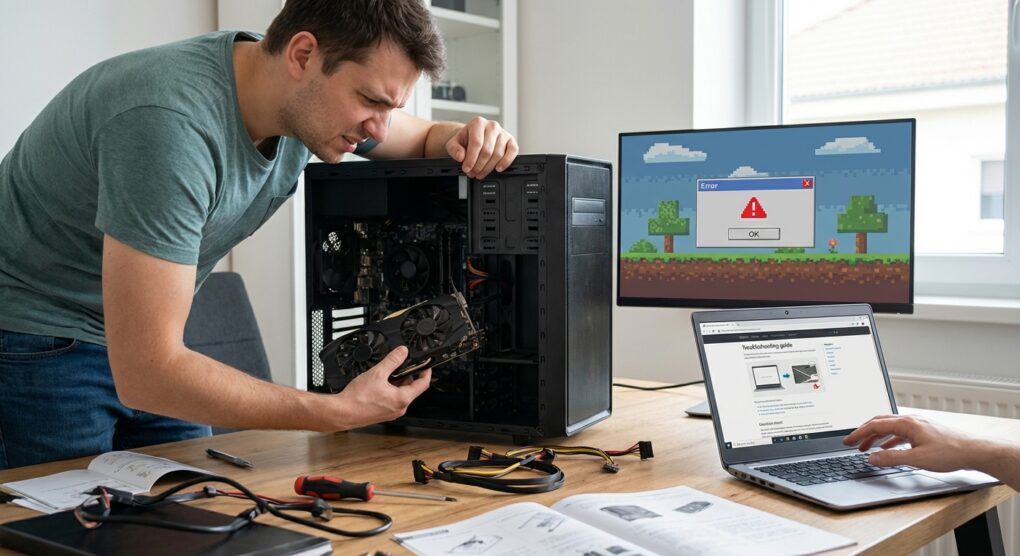
This is easily top three on my list of “Most Useless Windows Error Messages.” You are in the middle of a render, a game, or even just watching a 4K YouTube video, and suddenly the screen goes black for a second, recovers, and spits out a notification in the Action Center: “Application has been blocked from accessing graphics hardware.” It tells you nothing about why it happened. It just tells you that Windows panicked and revoked the application’s privileges to talk to your GPU. I spent the better part of last weekend troubleshooting this on a client’s CAD workstation, and I can tell you right now that the “Update Drivers” button in Device Manager will not fix this. This error is a timeout symptom, not a missing file problem.
Why Windows Is Lying to You
To understand the fix, you have to understand the mechanism behind the crash. This is almost always caused by the Timeout Detection and Recovery (TDR) feature in Windows. Basically, the OS has a stopwatch. It sends a request to your graphics card and says, “Render this frame.” If the GPU doesn’t respond within a specific time window (usually 2 seconds), Windows assumes the card has hung/crashed. To prevent the entire computer from freezing (the Blue Screen of Death), Windows forcibly resets the graphics driver. When the driver resets, the application that was using it loses its connection, and you get the “Blocked” error.
The problem is that sometimes your GPU isn’t hung; it’s just busy. Maybe it’s chewing through a complex shader or a heavy texture load. Windows is too impatient. The “dirty” fix is simply telling Windows to wait longer before pulling the plug. The “proper” fix is ensuring the driver isn’t actually corrupt.
Phase 1: The Registry TDR Hack (The “Dirty” Fix)
I start here because it works 60% of the time and takes thirty seconds. We are going to edit the Windows Registry to increase the TDR timeout from 2 seconds to 8 seconds. This gives the GPU breathing room to finish its task before the OS kills it.
Warning: If you mess up the Registry, you can break Windows. Follow these instructions exactly.
- Press Windows Key + R, type
regedit, and hit Enter. - Navigate strictly to this path:
HKEY_LOCAL_MACHINE\SYSTEM\CurrentControlSet\Control\GraphicsDrivers. - Look at the right-hand pane. You are looking for a key called TdrDelay. It probably doesn’t exist yet.
- Right-click on empty white space in the right pane and select New.
- If you are on 64-bit Windows (which you almost certainly are), select QWORD (64-bit) Value.
- If you are on a legacy 32-bit install, select DWORD (32-bit) Value.
- Name the new value exactly
TdrDelay(Case sensitive). - Double-click TdrDelay. In the “Value data” field, change the 0 to 8. Leave the Base as Hexadecimal.
- Click OK and restart your computer.
This tells Windows to wait a full 8 seconds before nuking the driver. The first time I did this, I set it to 20 seconds, which was a mistake because when the GPU actually did crash, the system hung for a solid half-minute before recovering. 8 seconds is the sweet spot.
Phase 2: The Nuclear Driver Option (DDU)
If the registry edit didn’t work, your drivers are likely corrupted. Do not just install the new driver over the old one. That leaves behind conflicting registry keys and shader caches. I never troubleshoot GPU issues without Display Driver Uninstaller (DDU). It strips the driver out at the root level.
- Download the latest driver for your card (Nvidia/AMD/Intel) and save the installer to your desktop. Do not run it yet.
- Download DDU from a reputable source (Guru3D is the standard).
- Disconnect your internet. This is crucial. If you are online when you reboot, Windows Update will panic and try to auto-install a generic display driver the second you uninstall the old one, ruining the clean process. Pull the Ethernet cable or turn off Wi-Fi.
- Boot into Safe Mode. Hold Shift while clicking Restart in the Start Menu > Troubleshoot > Advanced Options > Startup Settings > Restart > Press 4.
- Run DDU. Select your GPU brand on the right.
- Click Clean and Restart.
- Once back in normal Windows (still offline), run the driver installer you downloaded in Step 1.
- Only reconnect the internet once the installation is finished.
Phase 3: Repairing System Files
Sometimes the issue isn’t the GPU driver, but the DirectX libraries or system files that interface with it. I run the System File Checker (SFC) and DISM commands on every machine I service that shows stability issues.
- Open the Start Menu, type
cmd, right-click Command Prompt, and choose Run as Administrator. - Type
DISM /Online /Cleanup-Image /RestoreHealthand hit Enter. This checks the Windows image store for corruption and downloads fresh copies of broken files from Microsoft servers. It might take ten minutes. Let it sit. - Once that finishes, type
sfc /scannowand hit Enter. This scans your active system files against the store you just fixed.
If SFC says “Windows Resource Protection found corrupt files and successfully repaired them,” you likely just fixed the issue.
Phase 4: The Hardware Reality Check (Underclocking)
If you are still getting blocked, your GPU might be physically unstable. Factory overclocks on “OC Edition” cards are notorious for being just slightly too aggressive, leading to instability after a year or two of degradation.
Download a tool like MSI Afterburner. You don’t need an MSI card to use it; it works on everything. Find the Core Clock slider and lower it by -50 MHz or -100 MHz. Click Apply. It sounds counter-intuitive to make your hardware slower, but I have saved dozens of “dying” cards by simply underclocking them slightly. If the error stops, your card is failing to maintain its advertised clock speeds.
Common Pitfalls
The “Game Mode” Sabotage
Windows has a feature called Game Mode and another setting called Hardware-accelerated GPU scheduling. In theory, these optimize performance. In practice, on older builds or specific driver versions, they cause conflicts. I routinely turn these off when troubleshooting TDR errors. Go to Settings > System > Display > Graphics > Change default graphics settings and toggle off “Hardware-accelerated GPU scheduling.” Then go to Settings > Gaming > Game Mode and turn that off too.
The RAM Imposter
A failing stick of system RAM often mimics a GPU failure. If the GPU tries to write to a bad memory address in your system RAM (which it does constantly for texture swapping), the driver crashes. I once wasted three days RMA-ing a perfectly good GTX 1080 only to find out the client had a bad stick of Corsair Vengeance RAM. Run Windows Memory Diagnostic just to rule it out.
The Power Supply (PSU) Ripple
If this error happens exclusively when the GPU is under heavy load (like 100% usage in a benchmark), your Power Supply Unit might be failing or underpowered. As the GPU demands a spike in power, an old PSU might not deliver clean voltage, causing the GPU to hang for a millisecond. If you are running an RTX 3080 on a 600W Bronze unit from 2015, that is your problem.
This error is essentially a “time-out” call by the referee; increase the timer with the registry fix first, and if that fails, assume the players (drivers or hardware) are injured.