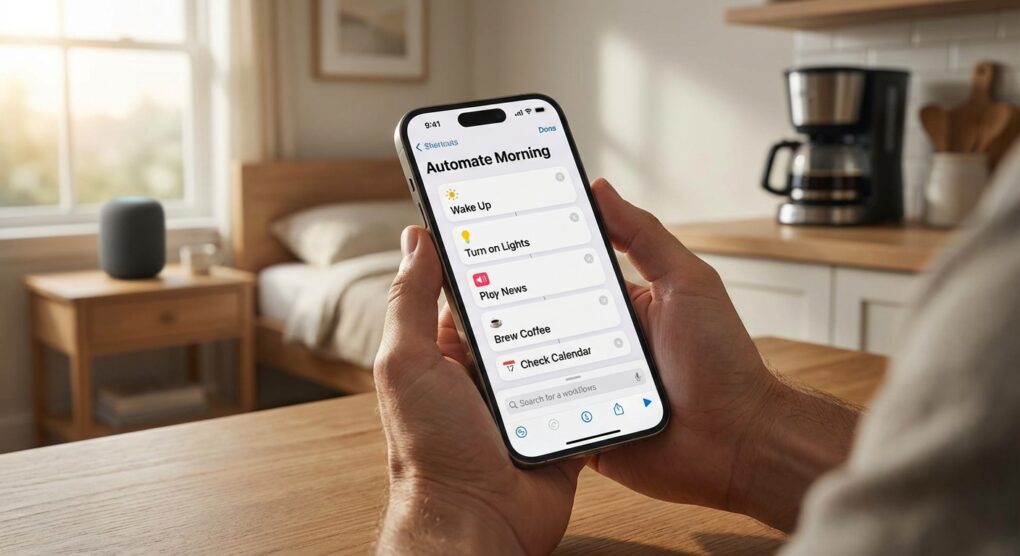
I hate mornings. I hate them even more when my first interaction with the world is a blindingly bright screen and a barrage of unread Slack notifications. For years, I did what everyone else does: I woke up, turned off my alarm, unlocked my phone, and immediately fell into the doomscroll trap. Before I knew it, I’d lost twenty minutes looking at other people’s problems instead of checking if I needed an umbrella or if my first meeting had been cancelled. I got tired of being reactive, so I did what any self-respecting sysadmin does: I wrote a script to handle the boot sequence of my day.
Why Native Automation Beats “Smart” Apps
You might be tempted to download some “Morning Routine” app from the App Store that charges you a subscription to tell you the weather. Don’t. Those apps are bloated containers for data that your phone already has access to at the system level. iOS Shortcuts is basically a GUI wrapper for shell scripting. It has direct hooks into the OS that third-party apps can only dream of. With iOS 18, the integration is even tighter, allowing for background execution that doesn’t time out as aggressively as it used to.
The problem with the default implementation of shortcuts is that people treat them like buttons. They want to press a button to “Start Morning.” That defeats the purpose of automation. If I have to remember to press a button, the system has failed. The method I use relies on the Automation tab, specifically triggering off the “Wake Up” alarm state. It runs locally, it’s fast, and it doesn’t require an API key or a credit card.
The Build: Constructing the Logic
We aren’t just dragging in a “Good Morning” action. We are building a logic flow that checks the state of the world (weather, calendar, battery) and reports it back to you via audio, so you don’t even have to open your eyes. Open the Shortcuts app and go to the Shortcuts tab (not Automation yet, we build the script first).
1. Initialize the Environment
Create a new shortcut and name it “System Boot”. The very first action you must add is Set Volume. Set it to 30% or whatever level doesn’t induce a heart attack. The first time I built this, I forgot this step. My phone was still at 100% volume from watching YouTube videos the night before, and at 6:00 AM, Siri screamed the current humidity levels so loud I thought the fire alarm was going off. Hardcode the volume first.
2. Pulling Weather Data (The Right Way)
Don’t use the generic “Get Weather” summary. It’s too verbose and often inaccurate for your specific location. Use Get Current Weather. Then, add a Get Details of Weather Condition action. Link it to the output of the previous step.
I prefer to extract specific data points to build a custom string. I pull High, Low, and Precipitation Chance. I use an If statement here. Add the If action: “If Precipitation Chance is greater than 30“. Inside the “If” block, I set a text variable called RainWarning to “Expect rain today, pack the gear.” Inside the “Else” block, I set RainWarning to “Dry conditions.” This prevents the phone from telling me “0% chance of rain” every single day, which is useless noise.
3. Querying the Calendar Database
Next, we need to query your schedule. Add the Find Calendar Events action. This is where you need to be precise with your filters, or you’ll get garbage data.
- Set Start Date to is today.
- Add a filter: Calendar is not Holidays (I don’t care that it’s National Donut Day).
- Sort by Start Date.
- Limit to 3 items. You don’t want a lecture, you want a briefing.
Now, we have a list of event objects, but we can’t just speak them. We need a loop. Add a Repeat with Each action. Inside the loop, add a Text action. In that text box, tap Repeat Item and select Title, then type “at”, then select Start Date. I force the date format to None and the time format to Short to avoid hearing “September twenty-fifth two thousand twenty-five.” End the loop.
4. The Battery Check
I have a habit of falling asleep without plugging my phone in properly. Add a Get Battery Level action. Add another If block. If Battery Level is less than 40, set a variable PowerStatus to “Critical battery failure. Plug in immediately.” Otherwise, leave it empty. This simple check has saved me from leaving the house with a dead phone more times than I care to admit.
5. Constructing the Output Payload
Now we assemble the data. Add a Text action. This is your script. Type it out like this:
“Good morning. Current battery is [Battery Level] percent. [PowerStatus]. The forecast calls for a high of [High] and a low of [Low]. [RainWarning]. You have [Count] meetings today. Your first few events are: [Repeat Results].”
Finally, add the Speak Text action. Set the input to the text box you just created. Expand the arrow on the Speak Text action. Turn off Wait Until Finished. This allows the shortcut to terminate gracefully in the background while the OS handles the audio playback.
6. The Automation Trigger
Go back to the main screen of the Shortcuts app and tap the Automation tab. Click the + icon.
- Select Alarm.
- Choose Is Stopped. Do not choose “Is Snoozed” unless you want to be harassed.
- Select Existing and pick your work alarm.
- Select Run Immediately. This is the most critical change in recent iOS versions. If you leave it on “Ask to Run,” the notification will sit there waiting for you to tap it, which defeats the entire purpose of automation.
- In the action screen, search for Run Shortcut and select the “System Boot” shortcut we just built.
Common Pitfalls
The “Siri Voice” Glitch
In iOS 18, I’ve noticed a bug where the Speak Text action defaults to a robotic, low-quality voice if you don’t explicitly download the high-quality Siri voices. Go to Settings > Accessibility > Spoken Content > Voices. Download the “Premium” or “Enhanced” version of the voice you want. If you don’t, your morning briefing will sound like a Speak & Spell from 1995.
The Screen Lock Timeout
If your script is too long—say, if you try to have it read five headlines from RSS feeds—the iPhone’s screen might lock before the script finishes execution. When the screen locks, some actions (like fetching heavy data) can be suspended by the OS to save power. Keep your script lightweight. If you need it to do heavy lifting, add a Continue in Shortcuts App action, but that forces you to unlock the phone, which breaks the seamless flow.
Location Permissions
The first time this runs, it will fail silently. Why? Because the Weather action needs “Always Allow” or “While Using App” permissions. However, since the automation runs in the background, “While Using App” technically applies, but iOS is paranoid. You need to run the shortcut manually once by tapping it. It will pop up a permission dialog asking to access your location. Click Allow While Using App. If you don’t do this manual run, the automation will hang every morning trying to ask a question you can’t see.
It takes twenty minutes to script this out, but it saves you the cognitive load of checking four different apps before you’ve even had coffee.