The Shortcut Shuffle: Making Mac Feel Like Home
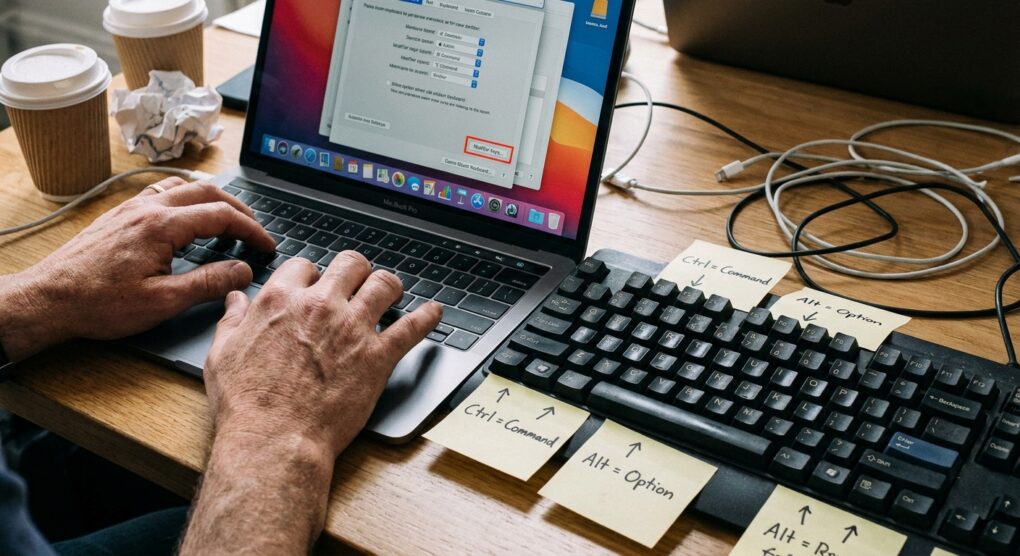
I’ve spent years behind a keyboard, solving problems on all sorts of systems. Lately, I’ve been helping more folks make the jump from Windows to macOS, and one of the biggest initial hurdles isn’t the UI or file system, it’s the muscle memory for basic keyboard shortcuts. Specifically, the incessant urge to hit Ctrl+C, Ctrl+V, Ctrl+Z, Ctrl+S, and Ctrl+F with my left pinky finger, only to find nothing happens. Instead, macOS wants me to use the Command key, which is usually right next to the spacebar, requiring a thumb stretch that feels unnatural and slows me down. It’s a minor annoyance, but when you’re doing it hundreds of times a day, it becomes a significant source of friction.
Why the Default Doesn’t Cut It (For Us)
Now, I know what some Mac users will say: “Just learn the Mac way!” And for a pure greenhorn, maybe that advice holds water. But for someone like me, who’s got a decade-plus of Windows-centric muscle memory baked into their nervous system, trying to retrain my hands to use Command where I’ve always used Control is an exercise in frustration. It’s not just about copying and pasting; it’s about saving, undoing, finding, selecting all – all those core operations where my pinky automatically reaches for that leftmost modifier key. The standard macOS setup forces me to use my thumb for these frequent actions, which, frankly, isn’t as ergonomic or efficient for touch typists used to the Windows layout. My approach focuses on bending the OS to my established workflow, not the other way around, because reliable productivity trumps purity of platform. We’re aiming for comfort and speed, not a new typing style.
How to Remap Your Modifier Keys
Alright, let’s get down to brass tacks. This isn’t rocket science, but knowing exactly where to go saves a lot of poking around.
Step 1: Open System Settings
First, you need to get to your system settings. On modern macOS (Ventura and later), this is called System Settings. On older versions (Monterey and earlier), it’s System Preferences. You can find it in your Dock, by clicking the Apple menu in the top-left corner of your screen and selecting System Settings…, or by searching with Spotlight (Command+Space and type “System Settings”).
Step 2: Navigate to Keyboard Settings
Once you’re in System Settings, look for Keyboard in the sidebar on the left. Click on it. This will bring up all your keyboard-related options.
Step 3: Access Modifier Keys
On the right side of the Keyboard settings pane, you’ll see a button labeled Keyboard Shortcuts…. Click that. In the new window that appears, typically on the left, you’ll see a list of categories. Look for Modifier Keys… near the bottom of the list, or it might be directly under the Keyboard tab itself on older macOS versions. Click that button.
Step 4: Select Your Keyboard (Crucial!)
This is where I messed up the first time, and it’s a critical step if you use external keyboards. At the top of the Modifier Keys window, there’s a dropdown menu labeled Select Keyboard:. If you’re using your MacBook’s built-in keyboard, it will likely say “Apple Internal Keyboard / Trackpad”. If you have an external keyboard connected, you’ll see it listed there too. Make sure you select the specific keyboard you want to modify. If you use both your laptop’s keyboard and an external one, you’ll need to repeat these steps for each.
Step 5: Perform the Remap
Now for the actual swap. You’ll see a list of modifier keys with dropdown menus next to them. This is what you want to change:
- For Control (^) Key: Change its action from “Control” to ⌘ Command.
- For Command (⌘) Key: Change its action from “Command” to ⌃ Control.
I usually leave Option (⌥) Key and Caps Lock (⇪) Key as they are, but some folks like to remap Caps Lock to Control as well, especially if they spend a lot of time in a terminal or using Vim. That’s a personal preference, but for our goal of Windows-like shortcuts, just swapping Control and Command is enough.
Step 6: Confirm and Test
Once you’ve made the changes, click OK to close the Modifier Keys window, and then close the Keyboard Shortcuts window, and finally System Settings. Open up a text editor, a browser, or any application where you frequently use shortcuts. Try Ctrl+C, Ctrl+V, Ctrl+Z, Ctrl+S, Ctrl+F. You should find your Windows muscle memory now works as expected!
Things people often get wrong
I mentioned my own slip-up earlier, and it bears repeating: not applying the changes to the correct keyboard. The first time I did this, I was so focused on getting the swap right that I didn’t notice the “Select Keyboard” dropdown. I applied the changes thinking it was system-wide, then plugged in my external keyboard and was immediately frustrated when my shortcuts didn’t work. I actually spent a good ten minutes trying to figure out if macOS had a “profile” per keyboard or something equally complex, only to realize I simply hadn’t selected my external keyboard in that dropdown menu and applied the same remap. Simple oversight, but it can throw you for a loop.
Another thing to watch out for, though it’s rare, is certain applications that might hardcode their shortcuts. For instance, some very specialized command-line tools or old games might bypass the system’s modifier key remapping. However, for 99% of daily use—browsers, office suites, text editors, IDEs—this system-level change works perfectly. If you encounter an application where it doesn’t seem to work, that’s the time to investigate if the application itself has its own shortcut mapping settings. But honestly, I’ve only run into this a handful of times in a decade, usually with very niche software.
Also, don’t confuse this with mapping application-specific shortcuts. macOS allows you to create custom application shortcuts in the App Shortcuts section of Keyboard Shortcuts. That’s for reassigning a menu item to a different key combination. What we’re doing here is much more fundamental: we’re changing the role of the physical modifier keys themselves, which then impacts how *all* shortcuts are interpreted system-wide.
This simple adjustment smooths the transition from Windows to macOS, making common operations feel intuitive and efficient from day one.