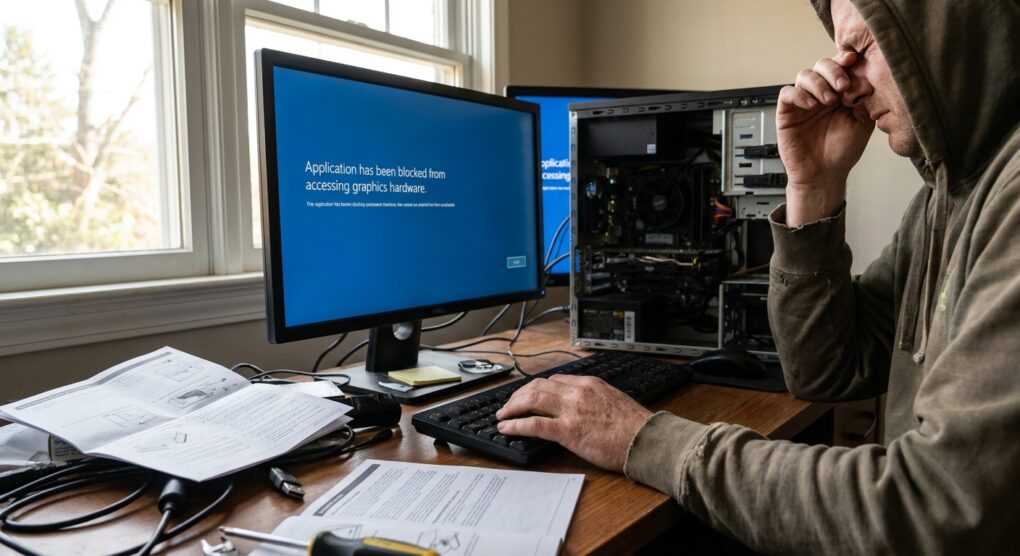
There’s nothing quite like being in the middle of a critical task – rendering a video, pushing through a challenging game level, or even just watching a hardware-accelerated stream – when your screen flickers, goes black for a second, then your application crashes with that all-too-familiar, dreaded message: “Application has been blocked from accessing graphics hardware.” It’s a sudden, jarring halt to whatever you were doing, and it leaves you wondering if your GPU is on its last legs or if Windows is just being overly dramatic. I’ve seen this pop up on everything from high-end gaming rigs to office machines with integrated graphics, and it almost always points to the same underlying tension between the operating system and the graphics driver.
Most folks, myself included when I first ran into this years ago, jump straight to updating their graphics drivers. And yes, sometimes a driver update fixes it, or rolling back to an older one does the trick. But more often than not, it’s a temporary reprieve, or it doesn’t solve it at all. The underlying problem here is typically Windows’ Timeout Detection and Recovery (TDR) mechanism. Essentially, if the GPU takes too long to respond to a command from the operating system, Windows assumes it’s hung, resets the driver, and throws that error. It’s a safety net, but it’s often too aggressive, especially when a GPU is genuinely busy or temporarily overloaded. My approach focuses on giving the GPU a little more breathing room, telling Windows to be a bit more patient before it decides to intervene so drastically.
How to Give Your GPU Some Breathing Room
This isn’t a single magic bullet, but a combination of steps to ensure stability. Work through them systematically.
-
Clean Driver Reinstallation (The Foundation)
Before touching anything else, let’s make sure your graphics drivers aren’t part of the problem. A clean slate is key. I’ve had countless issues where old driver remnants caused instability, so don’t skip this.
- First, download the latest stable graphics driver for your GPU directly from the manufacturer’s website (NVIDIA, AMD, Intel). Do not rely on Windows Update for this. Place the installer somewhere easy to find, like your Desktop.
- Next, grab a copy of Display Driver Uninstaller (DDU) from Wagnardsoft. It’s a lifesaver for truly clean uninstalls.
- Reboot your PC into Safe Mode. The easiest way is to hold Shift while clicking Restart from the Start Menu, then navigate to Troubleshoot > Advanced options > Startup Settings > Restart, and then press 4 or F4 for Safe Mode.
- Once in Safe Mode, run DDU. Select your GPU type (NVIDIA, AMD, or Intel) and choose Clean and restart. Let it do its thing.
- After the reboot, Windows will likely be using a generic display driver. Now, run the graphics driver installer you downloaded earlier. Follow the prompts for a Custom or Clean Installation if available, to ensure all old profiles are wiped.
-
Adjusting TDR Values in the Registry (The Core Fix)
This is where we tell Windows to be more patient. We’re going to add or modify a couple of registry keys. Be careful here, mistakes in the registry can cause system instability. If you’re unsure, make a backup first (File > Export in Regedit).
- Press Windows Key + R, type
regedit, and hit Enter to open the Registry Editor. - Navigate to:
HKEY_LOCAL_MACHINE\SYSTEM\CurrentControlSet\Control\GraphicsDrivers - In the right pane, you’ll likely see a bunch of entries. We need to create two new DWORD (32-bit) Value entries.
- Right-click in the empty space, select New > DWORD (32-bit) Value.
- Name the first one TdrDelay. Double-click it and set its Value data to 8 (decimal). This tells Windows to wait 8 seconds before declaring a timeout. I’ve found 8-10 seconds to be a good starting point for most systems.
- Create a second new DWORD (32-bit) Value and name it TdrDdiDelay. Double-click it and set its Value data to 5 (decimal). This relates to how long the OS waits for the display driver to complete specific operations.
- Close the Registry Editor and restart your computer for the changes to take effect.
- Press Windows Key + R, type
-
Power Management Optimization
Sometimes, power-saving features can be a bit too aggressive, causing your GPU to briefly drop in performance and trigger a TDR. Ensure it’s getting consistent power.
- Open the Control Panel, go to Hardware and Sound, then Power Options.
- Select your currently active power plan (e.g., Balanced, High Performance) and click Change plan settings.
- Click Change advanced power settings.
- Scroll down and expand PCI Express. Expand Link State Power Management and set its setting to Off.
- If you have an NVIDIA GPU, check the NVIDIA Control Panel: go to Manage 3D settings > Power management mode and set it to Prefer maximum performance. AMD has similar settings in Radeon Software.
- Click Apply and OK.
-
Application-Specific Tweaks
Sometimes the issue is localized to a particular application or game.
- If the error occurs in a specific game, try checking its in-game graphics settings. Experiment with different DirectX versions (DX11 vs DX12), V-Sync settings, or even lowering textures/shadows temporarily to see if the issue persists.
- Disable in-game or desktop overlays like those from Steam, Discord, GeForce Experience, or AMD Radeon Software. These can sometimes interfere with the graphics pipeline.
- Try running the problematic application as an administrator.
Common mistakes
I’ve been down this road many times, and there are a few traps I’ve seen people (and frankly, myself in my earlier days) fall into. The most common mistake I made the first time I really dug into this problem was just grabbing the newest driver and installing it right over the old one. I thought “newer is better” and skipped the DDU step entirely. What ended up happening was persistent instability because old files or registry entries from the previous driver version were still floating around, clashing with the new ones. It taught me that a truly clean driver install isn’t optional; it’s fundamental. Another thing people often get wrong is assuming the latest driver is always the most stable. Sometimes, particularly with brand-new GPU releases or major game launches, the bleeding-edge drivers can introduce their own quirks. If a new driver came out just before your problems started, consider rolling back to the previous stable version that worked for you.
Also, don’t overlook hardware. While TDR errors are often software-fixable, they can sometimes be a symptom of an underlying hardware issue. Overclocking your GPU, even a factory overclock, can push it beyond its stable limits, especially under sustained load. Try returning your GPU to its stock clock speeds if you’ve tweaked it. Similarly, poor airflow or dust buildup leading to high GPU temperatures can cause instability. A quick check of your GPU temperatures under load (using tools like HWMonitor or GPU-Z) is always a good idea. And while it’s less common, an aging or insufficient power supply unit (PSU) struggling to deliver stable power to the GPU under load can also manifest as TDR errors.
Ultimately, resolving this error is about providing your graphics hardware with the stable environment and sufficient time it needs to perform its job without the operating system prematurely pulling the plug.