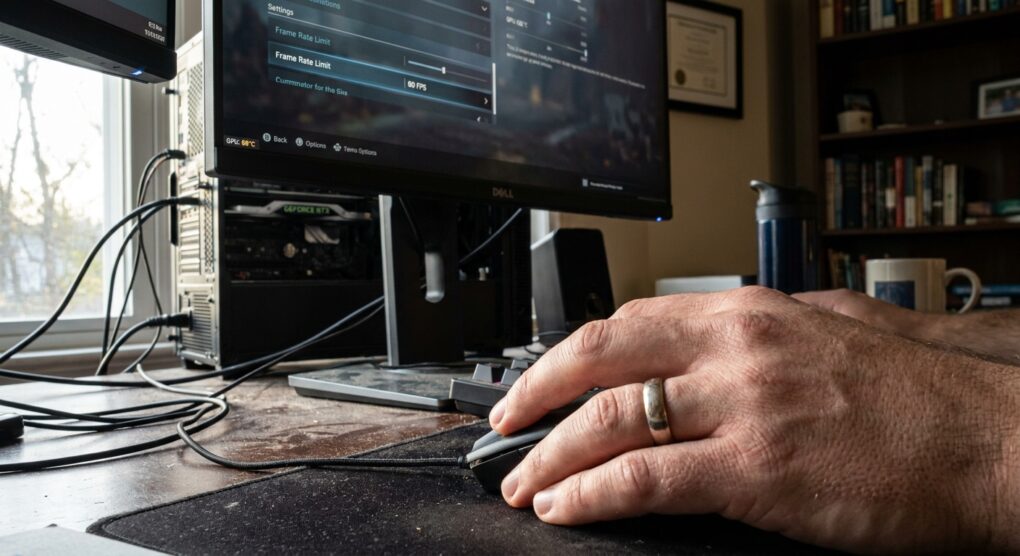
My GPU was screaming recently, not during a hardcore benchmark, but just pushing frames in some older, less demanding games. We’re talking 85 degrees Celsius and fans roaring, for no good reason. It became clear: my graphics card was simply rendering frames as fast as it possibly could, completely uncapped, burning watts and generating heat for no discernible benefit to my actual gameplay experience. I needed a fix, and I needed one that was reliable and didn’t involve replacing hardware.
Why this approach is better than just letting it run wild
The core issue is that most games, by default, push your GPU to render as many frames as possible. While great for benchmarks, it’s often wasted effort. Your monitor has a maximum refresh rate (e.g., 60Hz, 144Hz); frames rendered beyond that are discarded. This wasted computation translates directly into higher power draw, more heat, and louder fans. My philosophy is to optimize for efficiency, not just raw power. Limiting frames isn’t hobbling performance; it’s smart management, keeping components cooler, quieter, and extending their lifespan.
How I limit frame rates effectively
I tackle this in a systematic way, starting with the simplest, most direct methods before moving to more comprehensive, system-level solutions.
1. Check In-Game Settings First
Always my first port of call. Many games now include a direct option to limit frame rates. Look for settings like Max FPS, Frame Rate Limit, or Target FPS in the graphics or display menus. I typically set this to my monitor’s refresh rate (e.g., 60 FPS, 144 FPS) or slightly below (e.g., 58 FPS, 140 FPS) to help with frame pacing and avoid minor tearing without V-Sync. If the game doesn’t offer this, or if the setting isn’t effective, I move to the driver level.
2. Utilize Your GPU Driver’s Control Panel
This provides much finer control and is generally where I find the most consistent results.
For NVIDIA GPUs:
- Right-click on your desktop and select NVIDIA Control Panel.
- In the left pane, under 3D Settings, click Manage 3D settings.
- Decide if you want a global limit or a game-specific one:
- For a global limit: Select the Global Settings tab.
- For a specific game: Select the Program Settings tab. Click Add to find the game’s executable if it’s not listed.
- Scroll down and find the Max Frame Rate setting.
- Set it to On and input your desired FPS limit.
- Click Apply.
For AMD GPUs (AMD Software: Adrenalin Edition):
- Right-click on your desktop and select AMD Software (or launch from Start Menu).
- Click on the Gaming tab at the top.
- Choose your target:
- For a global limit: Click on Graphics in the sub-menu.
- For a specific game: Find and click on the game’s tile.
- Locate either Radeon Chill or Frame Rate Target Control (FRTC).
- Radeon Chill: Enable this. It has a min/max FPS range. Set the maximum to your desired limit; it intelligently manages frames based on activity.
- FRTC: If present, enable and set your target frame rate for a hard limit.
- Ensure changes are saved.
3. Third-Party Tools (RivaTuner Statistics Server – RTSS)
When in-game or driver-level options don’t quite hit the mark—perhaps for older titles or for granular control across multiple games—RivaTuner Statistics Server (RTSS) is my go-to. It’s robust and very effective. It’s often bundled with MSI Afterburner, but works standalone.
- Download and install MSI Afterburner (which usually includes RTSS) or RTSS by itself.
- Launch RivaTuner Statistics Server (it typically minimizes to your system tray).
- In the RTSS window, locate the Framerate limit setting.
- For a global limit: Ensure the Global profile is selected. Set the Framerate limit.
- For a specific game: Click the green Add button, navigate to the game’s executable (e.g., C:\Program Files (x86)\Steam\steamapps\common\[Game Name]\[Game Name].exe), then set the Framerate limit for that profile.
- Close the RTSS window (it will stay active in the tray) and launch your game.
Common mistakes
I’ve been tinkering with this kind of thing for a while, and I’ve certainly tripped over a few common issues myself. One frequent oversight is using multiple frame rate limiters simultaneously. For instance, enabling V-Sync in-game, then setting a frame rate limit in your GPU driver, and possibly another in RTSS. While this usually won’t break anything, it can lead to confusion. The lowest limit will always take precedence, but the layered approach can sometimes introduce minor stutter or just make it harder to pinpoint which setting is actually controlling things.
My own genuine mistake early on was setting a 60 FPS limit in the NVIDIA Control Panel while simultaneously having V-Sync enabled in-game. I didn’t fully grasp that V-Sync’s primary function is to synchronize frames with your monitor’s refresh rate to prevent tearing, effectively capping your FPS to that rate anyway. My separate 60 FPS limit was redundant. If my monitor had been 144Hz, my driver limit would have overridden V-Sync’s potential for higher frames, which wasn’t my intent. For temperature control, a dedicated frame rate limiter (driver or RTSS) is often preferable to V-Sync, as V-Sync can introduce input lag. Pick one primary method for a given game and stick to it.
Another quick one: always double-check you’re applying these limits to the actual game executable. I’ve wasted time scratching my head, only to find I’d mistakenly set a limit for a game launcher instead of the game itself.
By proactively managing frame rates, you gain precise control over your system’s thermals and acoustics, making it run smarter and last longer.