Bringing PC Games to the Big Screen
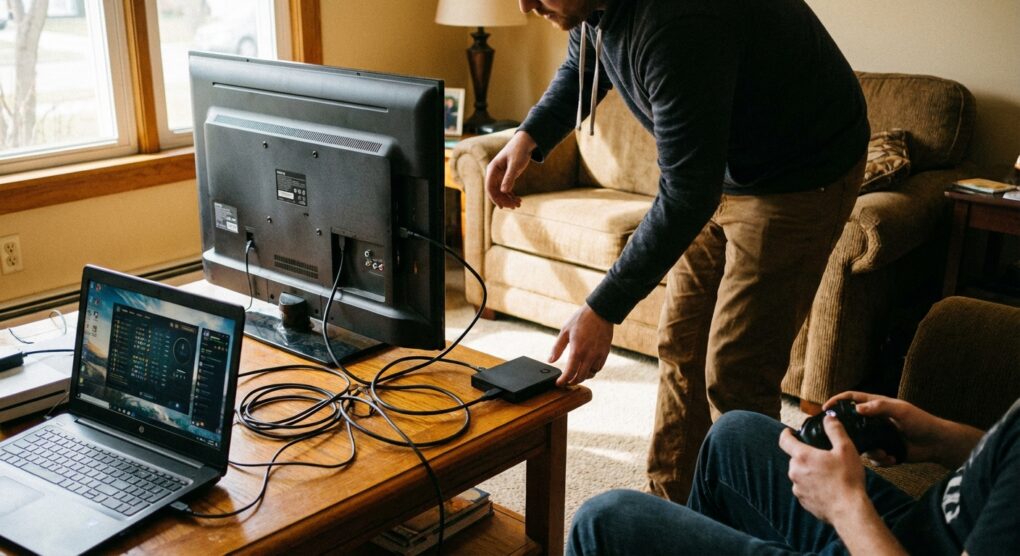
I had a stack of fantastic PC games I wanted to play from the comfort of my living room sofa, but my powerful gaming rig lives stubbornly in my office. Dragging the whole setup out to the TV every time wasn’t a practical solution, and a long HDMI cable strung across the floor looked like a trip hazard waiting to happen. The goal was simple: play my PC games on the big TV, wirelessly, without fuss. That’s precisely the problem Steam Link was built to solve, and I’ve set it up on my own machines more times than I can count.
Why Steam Link Just Works
I’ve seen plenty of folks try to tackle this by building dedicated HTPCs (Home Theater PCs), or worse, re-buying their entire game library on a console. Both approaches are often overkill or just plain wasteful. The real elegance of Steam Link is that it leverages what you already possess: a perfectly capable gaming PC and your existing Steam game collection. It’s a simple, effective bridge that doesn’t demand extra hardware investment beyond a compatible device for your TV and, critically, a solid home network. It streams the game, taking advantage of your PC’s horsepower, and sends the video to your TV while relaying your controller inputs back. It just makes sense.
Getting Your Stream On: A Step-by-Step Guide
1. PC Preparation: The Foundation
Before you even touch the TV, ensure your gaming PC is squared away. This is where most issues start, in my experience.
- Make sure your PC is powered on and not in sleep mode.
- Launch Steam and log into your account. Keep it running in the background.
- Network Check: This is paramount. I highly recommend connecting your gaming PC to your router using an Ethernet cable. Wireless works, yes, but for a smooth, low-latency gaming experience, wired is king.
- Update Drivers: Ensure your graphics card drivers are up-to-date. Outdated drivers are a silent killer of streaming performance. I also make sure my network adapter drivers are current.
- Power Management: Prevent your PC from going to sleep. Navigate to Control Panel > Hardware and Sound > Power Options > Change plan settings for your active power plan, and set Put the computer to sleep to Never, at least for testing. You can always change it back later, but it’s a common oversight.
2. Setting Up Steam Link on Your TV Device
You have a few options here. I personally use the app on my smart TV.
- Smart TV App: If you have a Samsung Smart TV (2016 or newer), LG TV (webOS 4.0+), or an Android TV device (like an Nvidia Shield or Chromecast with Google TV), simply search for the Steam Link app in your TV’s app store. Download and install it.
- Standalone Steam Link Hardware: If you happen to own one of the original Steam Link boxes, just plug it into your TV via HDMI and power, then connect it to your network.
- Raspberry Pi: For the more technically inclined, a Raspberry Pi can be configured as a Steam Link client. It’s a bit more involved, but it’s a solid, low-power option.
3. Pairing Your Steam Link with Your PC
This is usually the easiest part.
- Launch the Steam Link app on your TV or turn on your Steam Link hardware.
- It should automatically scan for Steam instances on your local network. Select your gaming PC from the list.
- The Steam Link app will display a 4-digit PIN.
- On your gaming PC, Steam will pop up a window asking for this PIN. Enter it.
- Once paired, you’ll be prompted to connect a controller. Plug it into your TV device, or pair it via Bluetooth if your device supports it (like many smart TVs or Android TV boxes). I usually use an Xbox controller paired via Bluetooth to the TV directly.
4. Optimizing Your Streaming Experience
The default settings are a good starting point, but you can usually get more out of it.
- From the main Steam Link menu (before launching a game), go to Settings.
- Under Streaming, you’ll find options like Fast, Balanced, and Beautiful. Start with Balanced and tweak from there. Beautiful prioritizes visual quality, but can introduce latency or dropped frames on less robust networks. Fast sacrifices some visual fidelity for maximum responsiveness.
- You can manually set a bandwidth limit. If you see stuttering, try lowering this. Conversely, if your network is great, you can push it higher.
- Resolution settings are also there. Match your TV’s native resolution if performance allows.
- On your PC, within Steam, navigate to Steam > Settings > Remote Play > Advanced Host Options. Here, I generally check Prioritize network traffic. You can also experiment with Software encoding versus Hardware encoding; hardware encoding usually provides better performance if your GPU supports it well.
Things people often get wrong
I’ve debugged more of these setups than I care to admit, and there are a few recurring themes that catch people out, myself included, on occasion.
- Relying Solely on Wi-Fi: I know I mentioned it, but it bears repeating. Wi-Fi, especially 2.4 GHz, is susceptible to interference and latency spikes. If your PC is on Wi-Fi and your TV device is on Wi-Fi, you’ve doubled your potential trouble spots. A single Ethernet connection, ideally for the PC, makes a world of difference. The Steam Link app will often warn you if your network connection is suboptimal. Don’t ignore it.
- Firewall Blocks: Windows Firewall, or even a firewall on your router, can silently block Steam Link’s connection. Steam needs to be able to communicate freely on your local network. If you’re having trouble pairing, temporarily disabling your PC’s firewall for a minute to test can quickly tell you if this is the culprit. If it is, remember to re-enable it and add specific exceptions for Steam.
- My Own Dumb Mistake: One time, after setting up a new TV and installing Steam Link, I couldn’t for the life of me get it to connect consistently. It would pair, then drop, then refuse to find the PC. I spent a good hour scratching my head, checking network cables, router settings, and even reinstalling the app. Turns out, despite my earlier advice, I had forgotten to adjust the power settings on my PC. After a few minutes of inactivity, the PC was just going to sleep, making it unavailable to Steam Link. A quick trip to Control Panel > Power Options to set it to Never sleep for the duration of my gaming session, and everything worked flawlessly. It’s the small, overlooked details that often cause the biggest headaches.
- Outdated GPU Drivers: I touched on this, but it’s critical. If your stream looks choppy or drops frames even with a good network, the first thing I check (after power settings) is the graphics driver version. Steam Link relies heavily on your GPU for encoding the video stream, and older drivers can be surprisingly inefficient or buggy.
- PC Not Actually Running Steam: This sounds obvious, but I’ve seen it. Sometimes Steam crashes, or someone forgot to launch it after a reboot. The Steam Link app won’t find your PC if Steam isn’t running and logged in.
Setting up Steam Link correctly transforms your gaming experience, proving that sometimes, the best solution is simply a smart utilization of what you already own.