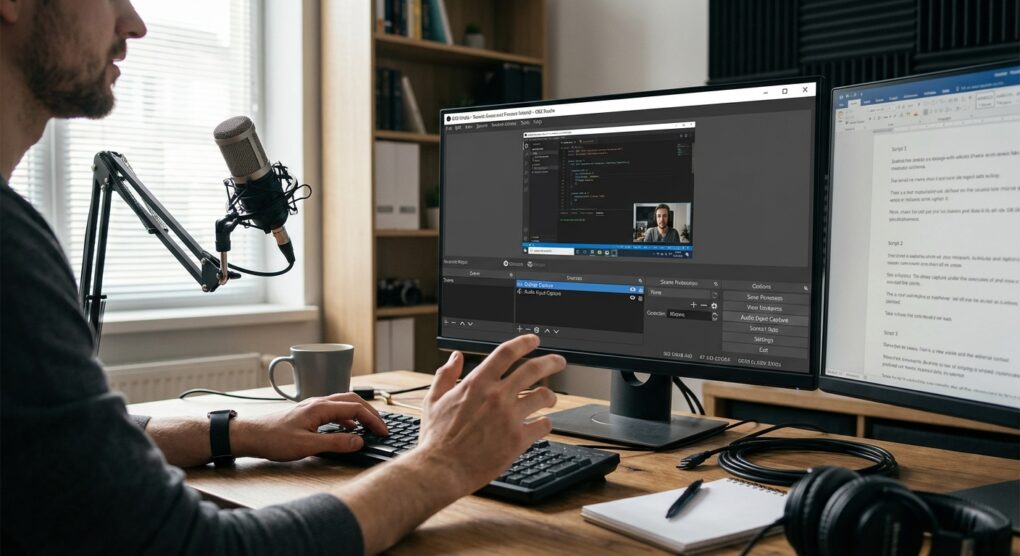
Stop paying monthly subscriptions for “premium” screen recording software that just wraps FFMPEG in a shiny UI. I got tired of explaining this to the juniors on my team every time they needed to document a bug reproduction, so I’m writing it down once. If you need to record a tutorial, a bug report, or a deployment procedure, you use OBS Studio. It’s ugly, it’s intimidating at first, but it works, and it doesn’t stamp a giant watermark over your terminal window.
Why OBS and not QuickTime or the Game Bar?
I use OBS because it gives me granular control over audio routing. The built-in Windows Game Bar is trash; it bloats your recordings and locks you into a single window. QuickTime on Mac creates files so large they choke my NAS. OBS lets me define exactly what bitrate I want, mix my microphone independently of my system audio, and composite my webcam if I really feel the need to show my face (I usually don’t). Yesterday, I had to record a walkthrough of a legacy firewall config, and being able to crop out the browser tabs with my sensitive tickets was the only reason I didn’t have to spend three hours editing the video later.
The Setup That Actually Works
Forget the “Auto-Configuration Wizard.” It tries to optimize for streaming, but we want high-quality local recording. Here is exactly how I configure a fresh install on my workstation.
- Download and Install: Get the installer from the official site. Don’t grab it from the Microsoft Store; that version runs in a sandboxed container that messes with file permissions and plugins.
- Create a Scene: Open OBS. You’ll see a black void. In the bottom left, under Scenes, rename the default scene to “Desktop Record”.
- Add a Source: In the Sources box next to it, click the + icon and select Display Capture. If you have multiple monitors, pick the one that isn’t running your email client.
- Fix the Audio: Look at the Audio Mixer. You usually want two things: Desktop Audio (what the computer hears) and Mic/Aux (what you say). Mute everything else. I highly suggest doing a five-second test recording and shouting “Test” to make sure you aren’t peaking in the red.
Configuring the Encoder (The Important Part)
This is where everyone messes up. By default, OBS might set you to a low bitrate meant for Twitch streaming. We want crispy text so people can actually read your code.
- Go to Settings > Output.
- Change Output Mode from Simple to Advanced.
- Go to the Recording tab.
- Set Recording Format to mkv. Do not choose MP4 yet. I’ll explain why in the pitfalls section.
- For Encoder, use NVIDIA NVENC H.264 if you have an Nvidia card, or AMD HW H.264 if you’re on Team Red. If you’re on a potato laptop without a GPU, use x264, but expect your fan to sound like a jet engine.
- Set Rate Control to CQP (Constant Quantization Parameter). This is the dirty secret for good local recordings.
- Set the CQ Level to something between 20 and 23. Lower is higher quality but bigger file size. I use 20.
Usual Problems
I’ve wasted hours on these issues so you don’t have to.
The Corrupted MP4 Disaster
I mentioned using mkv earlier. The first time I recorded a long post-mortem analysis, I recorded directly to MP4. My machine BSOD’d right at the end (thanks, Windows Update driver conflict). MP4 files require a clean “close” to be readable. If OBS crashes, the whole file is garbage. MKV files don’t have this problem. If you crash, you still keep the footage up to that second. Use OBS’s File > Remux Recordings tool afterwards to convert it to MP4 in two seconds.
The “Black Screen” on Laptops
If you are on a laptop and your display capture is just a black screen, it’s usually because OBS is running on the dedicated GPU while your desktop is being rendered by the integrated Intel/AMD chip. You have to go into Windows Graphics Settings and force OBS to use “Power Saving” mode (the integrated GPU) to capture the desktop properly. It’s annoying, but it’s a Windows architecture problem, not an OBS one.
Audio Drift and Robot Voice
Check your sample rates. Go to Settings > Audio. If your device is set to 48kHz in Windows Sound Settings but 44.1kHz in OBS, your audio will eventually drift out of sync or sound like a robot in a tunnel. I set everything in my signal chain to 48kHz and never touch it again.
Once you verify your settings with a quick 10-second test, hit Start Recording, do your thing, and get back to work.