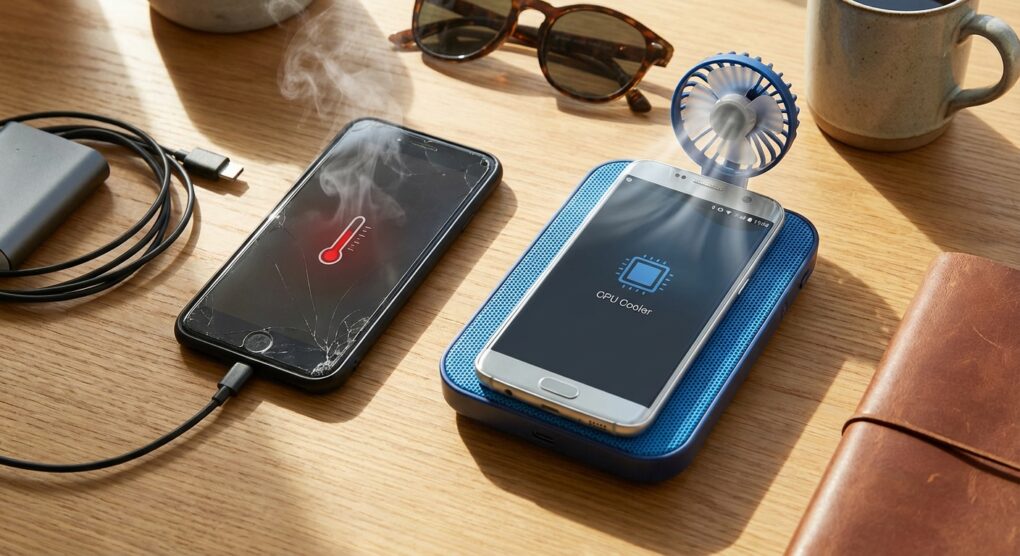
There is nothing quite like the panic of seeing the “iPhone needs to cool down before you can use it” screen right when you are trying to pull up a QR code for a flight. I deal with this constantly, usually because I’m trying to restore a backup while driving through a cellular dead zone in the middle of July. Smartphones are essentially glass sandwiches filled with chemicals that hate heat, and they have zero fans to cool themselves down. If your phone feels like a hot potato, it’s not just annoying; you are actively degrading the chemical structure of the battery. Once that lithium-ion chemistry cooks, it never holds a charge the same way again. Here is how to stop the thermal runaway before you brick your device.
Why Your Phone is Actually Overheating
Most people blame “too many apps,” but that’s rarely the root cause. Modern operating systems are aggressive about freezing background processes. If your phone is hot, it’s usually a physics problem or a radio problem. The processor (CPU) and the cellular modem are the two biggest heat generators. When you combine them—like downloading a large update over 5G while the screen is at 100% brightness—the phone has nowhere to dump that heat except into your hand. Unlike my server rack which screams with high-RPM fans, your phone relies entirely on passive cooling. It tries to dissipate heat through the frame and the glass. If you put a thick rubber OtterBox case on it, you have essentially dressed your phone in a winter coat inside a sauna. You are trapping the heat, forcing the CPU to throttle (slow down) to save itself.
Immediate Triage: The “Dirty” Fixes
When my phone gets uncomfortably hot, I don’t waste time digging through settings menus. I take immediate physical action to stop the thermal loop.
- Strip the Case Off: This is non-negotiable. I don’t care if you’re clumsy; take the case off immediately. The rubber and plastic act as insulators. I’ve seen internal temperatures drop by 5-10 degrees Celsius just by removing a heavy-duty case and letting the air hit the back glass.
- Kill the Radios (Airplane Mode): If the phone is hot, the modem is likely struggling to find a signal. A struggling modem pumps maximum power to the antenna, generating massive heat. Toggle Airplane Mode on for sixty seconds. This kills the cellular connection, the Wi-Fi, and the Bluetooth, instantly cutting the power draw.
- Stop Charging: If you are plugged in, unplug it. Charging generates heat as a byproduct of chemical conversion. If you are fast charging (anything over 20W), that heat is significant. Doing heavy tasks while fast charging is the quickest way to kill a battery I know of.
- The Car Vent Trick: If I’m driving and using GPS, I mount the phone specifically on the AC vent. I blast the AC. It’s dirty, but effective. Just don’t let it get so cold that condensation forms when you take it out.
The Software Hunt: Finding the Rogue Process
If your phone is overheating while it’s sitting idle in your pocket, you have a software vampire. A background process is stuck in a loop, chewing up CPU cycles. Here is how I hunt them down.
On iPhone (iOS)
Go to Settings > Battery and wait for the list to populate. Scroll down. You aren’t looking for the app you use the most (like TikTok or Instagram); you are looking for the discrepancy between “Screen On” time and “Background” activity.
- Tap on the list to switch the view to “Activity.”
- Look for an app that says something like “1 min on screen, 3 hrs background.” That is your culprit.
- Once you find it, go to Settings > General > Background App Refresh and turn it off for that specific app. I usually just turn off Background App Refresh globally because I don’t need my email app checking for messages every nanosecond.
On Android
Android is a bit more transparent but also messier. Go to Settings > Battery > Battery Usage. Look for apps with high percentage usage that you haven’t touched.
- If you see “Google Play Services” at the top, it usually means a sync job is failing repeatedly. I fix this by clearing the cache for the Play Services framework, but sometimes a simple reboot resolves the stuck loop.
- Check for “High Battery Usage” warnings. Samsung phones are actually decent at notifying you when an app is going rogue. Don’t ignore those notifications; put the app to “Deep Sleep” if the OS suggests it.
The 5G Factor
I realized recently that 5G is a major heat source, especially “Auto 5G” implementations. The modem uses significantly more power to maintain a 5G handshake than a standard LTE/4G one, especially if the signal is weak. If the tower is far away, your phone screams at full power to stay connected.
If you are in an area with spotty coverage, force your phone to use LTE. On iPhone, go to Settings > Cellular > Cellular Data Options > Voice & Data and select LTE. On Android, it’s usually under Connections > Mobile Networks > Network Mode. I keep my phone on LTE 90% of the time. The speed difference is negligible for web browsing, but the battery savings and thermal reduction are massive.
The Wireless Charging Problem
I refuse to use wireless charging if the ambient temperature is over 75 degrees Fahrenheit. Wireless charging relies on induction coils. It is terribly inefficient; a huge chunk of the energy coming from the wall is lost as waste heat right between the charger and the back of your phone. If you combine wireless charging with wireless CarPlay or Android Auto, you are cooking the device. I’ve had my phone shut down multiple times on road trips because I tried to use a magnetic wireless charger while running Google Maps in the sun. Use a cable. It’s faster, efficient, and generates way less heat.
Common Pitfalls
The Fridge/Freezer Myth
Do not, under any circumstances, put your overheating phone in the fridge or freezer. I saw a junior tech do this once. The rapid cooling causes the air inside the phone to condense into water droplets. Water inside the phone means corrosion on the motherboard. You trade a temporary heat problem for permanent liquid damage. Just put it in the shade or in front of a fan.
The “Waterproof” Dunk
Similarly, don’t dunk a “water-resistant” phone in cold water to cool it off. The thermal shock—the rapid contraction of the heated glass and metal seals hitting cold water—can compromise the adhesive gaskets that provide the water resistance in the first place. Plus, if your screen has even a microscopic crack, you just drowned your motherboard.
Cheap Cables and Bricks
I once bought a gas station charging cable because I left my Anker one at a hotel. My phone got noticeably hotter while charging. Cheap cables often have poor resistance tolerance and cheap connectors that generate heat at the port. Use a certified cable (MFi for Apple, decent USB-IF certified for Android). If the plug burns your finger when you pull it out, throw that cable in the trash immediately.
Physics always wins, so keep the case off, keep it out of the sun, and stop trying to mine crypto in the background.