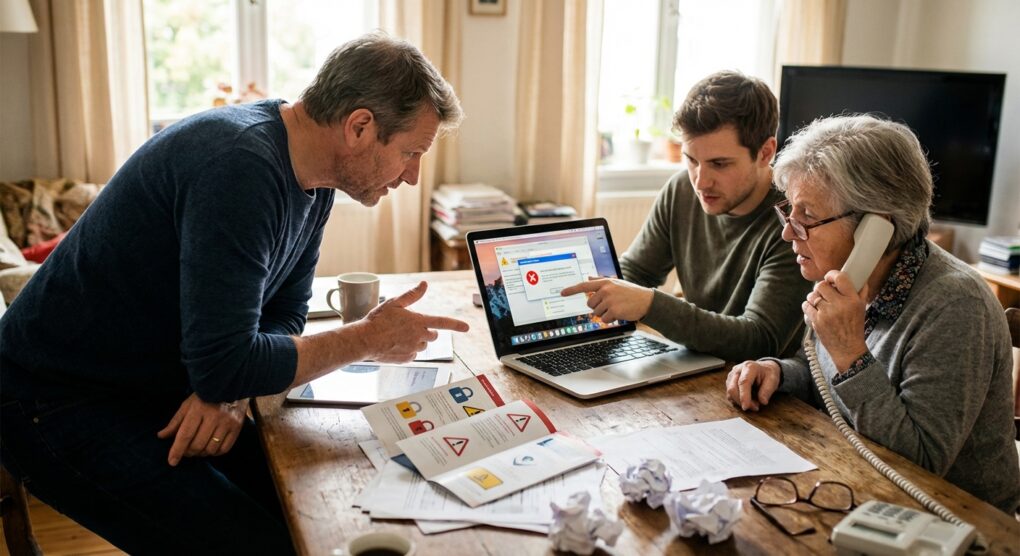
I spent my entire Sunday afternoon fixing my neighbor’s laptop because he clicked a link promising a “free driver update” and ended up with a siren blaring out of his speakers telling him the FBI had locked his computer. It wasn’t the FBI. It was a fifteen-year-old kid in a call center utilizing a simple Javascript loop to freeze his browser. Tech support scams are the bane of my existence not because they are sophisticated hacking attempts, but because they rely entirely on social engineering. No amount of firewalls or antivirus software can stop a user from voluntarily handing over their credit card number because a scary voice told them to. Here is how I identify these scams and the “dirty” ways I lock down computers for vulnerable relatives so they can’t fall for them again.
Why Antivirus Won’t Save You
Most people think, “I have Norton, I’m safe.” You aren’t. Antivirus looks for malicious code files—things like .exe or .vbs scripts that try to encrypt your hard drive. Tech support scams don’t usually start with a virus. They start with a webpage. The browser pop-up that says “YOUR COMPUTER IS INFECTED” is just a standard HTML page with a line of code that prevents you from closing the tab (window.onbeforeunload loop). Since the browser is a legitimate program and the webpage is just displaying text, your antivirus ignores it. The security failure isn’t in the machine; it’s in the user’s panic response. The only way to fix this is to understand what a real error looks like versus a fake one.
The “Dirty” Fix: Escaping the Browser Trap
When that pop-up hits and the mouse cursor disappears or gets stuck in a box, instinct tells you to click the “X” or “Cancel.” But the scammers programmed the “Cancel” button to just reload the warning. I watched my neighbor click “Cancel” forty times in a row, thinking it would eventually work. It wont.
- Don’t Touch the Mouse: If the browser is locked, clicking frantically often triggers more dialog boxes. Let go of the mouse.
- The Keyboard Kill Switch: On Windows, I never press Ctrl+Alt+Del anymore; it’s too slow. I press Ctrl + Shift + Esc. This opens the Task Manager directly, bypassing the full-screen overlay.
- Kill the Process: Look for “Google Chrome” or “Microsoft Edge” in the list. Don’t try to find the specific tab. Right-click the entire browser process and select End Task. The noise will stop immediately.
- The Restart Trap: When you open the browser again, it will helpfully ask, “Do you want to restore your pages?” Click NO. If you click Yes, you just reload the scam site and have to start over. I did this once while rushing to show a client the fix and looked like an absolute idiot when the siren started blaring again.
The “Event Viewer” Trick (The Phone Call)
If they actually get you on the phone, their goal is to prove you are infected. They don’t install malware yet; they use Windows’ own tools to lie to you. They will ask you to press Windows + R and type eventvwr.
This opens the Windows Event Viewer. It logs everything, including minor errors like a printer failing to wake up or a Wi-Fi packet dropping. A healthy computer has thousands of “Errors” and “Warnings” in this log. It is normal. The scammer will scroll through this red text and say, “Look, these are all the viruses sending your data to China.” It is complete nonsense. I have 10 years of experience, and my Event Viewer looks like a crime scene too. If anyone on the phone asks you to open Event Viewer, hang up. It is a scam 100% of the time.
Hardening the System: Protecting Family Members
You can’t teach your grandma to parse network traffic, but you can block the garbage before it hits her screen. I don’t rely on browser extensions alone because users accidentally disable them. I filter the internet at the network level.
1. DNS Filtering (The Real Protection)
I set up NextDNS or OpenDNS on every family member’s router. It’s free for personal use. Instead of using the ISP’s default DNS, I point the router to NextDNS. Then, in the dashboard, I enable the “Newly Registered Domains” (NRD) blocklist. Most scam sites are registered less than 24 hours before they are used. Blocking domains that are less than 30 days old eliminates about 90% of these pop-ups automatically. It’s a “set and forget” fix that has saved me countless weekend support calls.
2. The uBlock Origin Mandate
I refuse to let anyone I know use the internet without an ad blocker. I install uBlock Origin (not AdBlock Plus, which sells “acceptable ads” whitelisting). I go into the settings and enable the “Malware domains” and “Phishing” filter lists. This hides the fake “Download” buttons and the “You have won an iPhone” banners that lead to the tech support scams in the first place.
3. Uninstalling Remote Desktop Tools
If I’m cleaning up a computer, the first thing I check is the installed programs list for TeamViewer, AnyDesk, or LogMeIn. Scammers use these to take control of the machine. Unless I personally installed it to help them, I remove it. If a legitimate company needs to remote in (which is rare for home users), they will have a proprietary tool, they won’t ask you to download a free one from a random website.
Common Pitfalls
The “Microsoft” Caller ID
I once had a client argue with me that the call was real because his phone said “Microsoft Support” on the caller ID. Spoofing numbers is trivially easy. I can make a call look like it’s coming from the White House with five dollars of VoIP credits. Never trust the caller ID. Microsoft, Apple, and Google never call you. They don’t care if your computer is broken. If your phone rings and someone says “Windows,” it is a scam.
Thinking Macs are Immune
I see this arrogance all the time. “I have a MacBook, I don’t get viruses.” Scammers don’t care about your OS. The Javascript loop that freezes a browser works perfectly fine on Safari. The “Apple Support” scam looks exactly like the Windows one, just with gray buttons instead of blue ones. I’ve had to force-quit Safari on just as many Macs as I’ve had to kill Edge on PCs.
Engaging with the Scammers
Don’t try to be a hero and waste their time unless you know exactly what you are doing. I tried to bait a scammer once to record it for a laugh, but I slipped up and confirmed my real name which was listed in the directory they were reading from. The result was months of targeted harassment and endless robocalls. Just hang up. It’s not worth the risk.
Treat every unsolicited browser pop-up like a billboard on the highway; you can’t click it, you can’t trust it, and you should just keep driving until you get where you’re going.