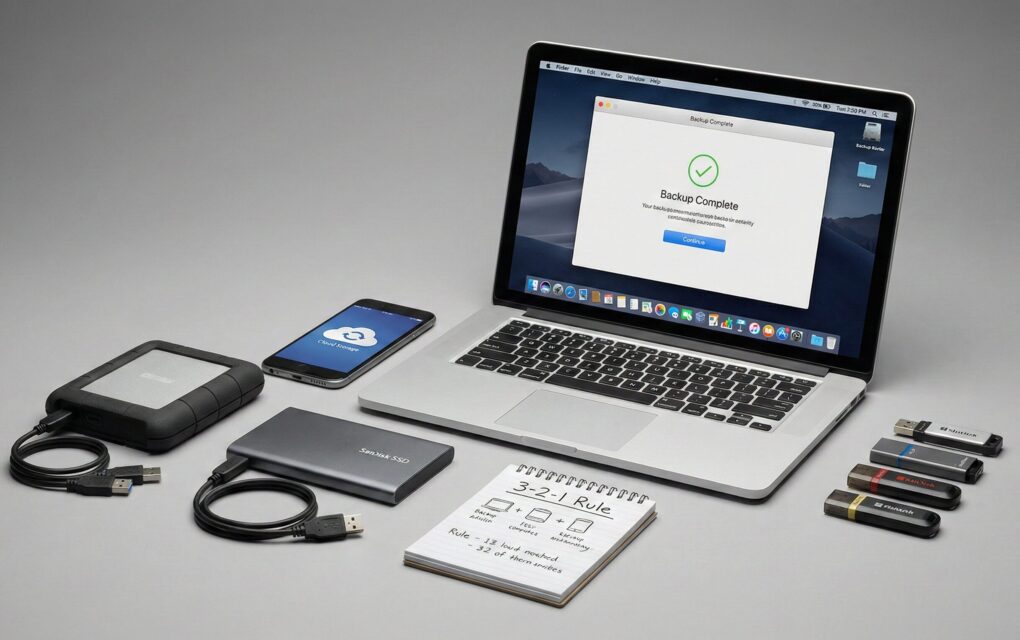
The only people who don’t worry about backups are the ones who haven’t lost data yet. I’ve been doing this for long enough to know that hard drives fail, houses burn down, and the cloud provider you trust can get crypto-locked just as easily as your desktop. Relying on your single primary disk or, worse, just syncing your files to Google Drive, is negligence. Sync is not backup. If you delete a file from your desktop, the sync service deletes it from the cloud. If you get ransomware, the sync service encrypts your cloud copy. The proper way to do this follows one rule, and it’s non-negotiable.
Why Single Copies are a Myth (The 3-2-1 Rule)
I don’t trust any data unless I have three copies of it. This isn’t paranoia; it’s the industry standard that minimizes risk from every disaster scenario, from human error to natural disaster. It’s called the 3-2-1 Backup Rule and it is the only backup strategy I implement. It breaks down like this:
- 3 Copies: Your primary copy (the files on your laptop) plus two additional backup copies.
- 2 Different Media Types: Don’t put both copies on identical external SSDs. Use different media—e.g., one external HDD and one cloud storage service.
- 1 Offsite Copy: At least one copy must be physically separate from your location (e.g., the cloud, or a drive stored at a relative’s house). This protects against fire, flood, and theft.
The How-To: Implementing a Real Backup Strategy
You don’t need expensive server software to do this. You just need a cheap external drive and a cloud subscription that understands versioning.
1. Local Copy: The Primary Backup (Speed and Convenience)
This is the fastest copy to restore from, used for simple file deletions or disk failure. I prefer using the native OS tool for the initial setup.
- Buy a Drive: Get a cheap external USB drive that is at least twice the size of your primary machine’s storage.
- Set up the OS Tool:
- Mac: Use Time Machine. Go to System Settings > General > Time Machine. Select the drive. Time Machine is excellent because it takes snapshots of file versions hourly.
- Windows: Use File History (or the older Windows Backup). Go to Settings > Update & Security > Backup. Use this only for user directories; I prefer the command line for system images.
- The Exclusion Fix: Don’t waste space backing up garbage. In the Time Machine options or File History settings, exclude the Downloads folder, your browser cache folders, and your Virtual Machines directory. These files are huge and constantly changing, chewing up space unnecessarily.
2. Offsite Copy: The Disaster Copy (Ransomware and Fire)
Your local external drive does nothing if your house burns down or if ransomware encrypts it while it’s plugged in. You need an offsite copy that supports versioning—the ability to roll back to a clean state from a week ago.
- Use a True Backup Service: OneDrive/Google Drive/Dropbox are sync services. I use dedicated backup services like Backblaze B2 or iDrive. They offer true versioning, where a file deleted from your PC remains in the backup for 30-365 days, and they are designed to handle terabytes of data.
- The Bandwidth Trap: The first backup will take days, possibly weeks, depending on your internet connection. Schedule the first run to happen overnight for several days, and make sure your computer doesn’t go to sleep.
3. The “Dirty” Manual Check (The Windows Fix)
For critical data or system administrators who need a quick snapshot of specific directories, I use the Windows command line tool, Robocopy, because it’s built into the OS and is extremely robust at copying large batches of files.
Open Command Prompt as Administrator and use this syntax to copy the entire contents of your documents folder to a specific directory on your local backup drive (D:):
robocopy C:\Users\YourName\Documents D:\Backup\Documents /E /Z /R:5 /W:5
This command copies all files and subdirectories (/E), is restartable (/Z), retries five times on failure (/R:5), and waits five seconds between retries (/W:5). It’s far better than dragging and dropping in Explorer.
Things people often get wrong
Confusing Sync with Backup
This is the biggest mistake I fix. People use OneDrive or Dropbox as their backup. If ransomware encrypts your local files, the sync client sees the changes and instantly encrypts the cloud files too. You lose everything. True backup services (like Backblaze) keep multiple, historical versions of your files that cannot be instantly overwritten by malicious changes on your primary device.
Failing to Test the Restore
A backup you haven’t tested is not a backup; it’s a guess. I once thought my Time Machine backup was working fine, but when I needed to restore a file, I realized the drive had been failing silently for three months. The software was only logging minor errors that I ignored. Every three months, test your restore. Go into the backup software and restore a random, non-essential file from last week. If it works, the system is operational.
The Ransomware Contamination
If you leave your external USB drive plugged into your PC 24/7, ransomware will encrypt that drive just like it encrypts your main disk. The moment the backup finishes, you must physically disconnect the external drive from the computer. The easiest fix for ransomware is having a copy of your data that the malicious script can’t access.
Ignoring Email and Cloud Storage Backups
Your business is probably entirely stored in Google Workspace or Microsoft 365. Those services offer zero guarantee against human deletion or account hijacking. I use a third-party service (like Veeam or Axcient) to specifically back up my email and cloud drive data to another cloud provider, adhering to the 3-2-1 rule even for SaaS. Don’t trust the vendor to save you from your own mistakes.
If the data is important, you need three copies, two types of media, and one copy stored somewhere you can’t see it from your window.